
Generate summary with AI

Windows environment variables control how your system and applications find the files and tools they need to run, and when managed correctly they can also increase efficiency across daily operations. In an enterprise setting, even small changes can cause issues if they aren’t handled carefully. Before you start modifying endpoints, it’s important to know which variables are safe to adjust and which ones must remain untouched.
Scripts, automation, and multiple user profiles add another layer of complexity, where one wrong change can create widespread problems. In this blog we’ll walk through the practical foundations, risks, and management considerations you need to know before making changes.
» Here’s how to increase IT efficiency in your organization
Practical foundations and pre-management considerations
Windows uses environment variables as dynamic shortcuts to help the operating system and your applications find the resources they need to function. Before you start making changes to your managed endpoints, you need to identify which variables are essential for daily operations and which ones are strictly off-limits to ensure system stability.
Common variables used in enterprise tooling
These variables are the ones you will interact with most frequently when writing scripts or setting up new software. They define the basic architecture of how a program finds its own files and where it should save data for the current user.
- %PATH% acts as a map that tells the OS exactly where to look for executable files like Git, Python, or basic command line tools.
- %SYSTEMROOT% points directly to your Windows folder and is absolutely vital for the system to find its own core utilities.
- %USERPROFILE% helps applications locate the home directory of the current user, including their Documents and Desktop folders.
- %APPDATA% is the go-to storage spot for app configurations and local settings for programs like Slack or Chrome.
- %TEMP% and %TMP% provide a designated workspace for installers and scripts to store temporary files safely.
- %COMPUTERNAME% is a key identifier used by inventory tools and enterprise scripts to label and track local assets.
Critical variables you should never modify
Certain variables are considered “load-bearing” parts of the operating system. If you alter these, you risk breaking core Windows functionality or preventing the system from booting entirely, as many processes have these paths hard-coded into their logic.
- %SYSTEMDRIVE% and %SYSTEMROOT% must remain unchanged because moving them will cause Windows services to fail as they lose access to the kernel.
- %COMSPEC% points to the command interpreter, so altering it will immediately break your scripts and basic shell functions.
- %PROGRAMFILES% and %PROGRAMFILES (X86)% are relied upon by almost every installer, and changing them leads to broken shortcuts and deep registry mismatches.
- %USERNAME% is a read-only reflection of the active user, and trying to force a change here will result in total authentication failure.
- %WINDIR% is another essential link to the core OS functionality that must stay exactly where it is to keep the system running.
Rules of interaction and operational risk
When you manage these variables, you have to deal with how they merge and override each other across different levels. Windows follows a specific hierarchy to decide which variable takes priority when an application makes a request.
- The merging and override rules: For the %PATH% variable, Windows combines system and user values, but for almost everything else, the user-level variable will completely hide the system-level version.
- Path shadowing risks: If a user installs a tool like Java locally, it might “shadow” the system version, causing your enterprise scripts to run against the wrong compiler.
- Security and binary planting: Attackers can exploit these rules by creating user-level paths that point to malicious folders, tricking the system into loading dangerous files instead of the intended ones.
- Inconsistent scripting: A script that works perfectly for an Admin might fail for a standard user if their personal profile contains a conflicting variable.
Key considerations for production environments
Before pushing changes to a live environment, you must evaluate how those changes will inherit across the domain. Small syntax errors or a lack of proper synchronization can lead to widespread downtime or security vulnerabilities that are difficult to trace.
- Precedence and inheritance: Always confirm if you are working at the System or User level and remember that most changes require a restart or re-login to take effect.
- Shadowing checks: Verify that your new entries won’t accidentally hide existing system binaries and cause OS utilities to malfunction.
- Security permissions: Any directory you add to a global path should have restricted write access to prevent unauthorized users from escalating their privileges.
- Group policy sync: In domain-joined environments, it’s much safer to use Group Policy Preferences for these updates to ensure everything stays consistent and easy to roll back.
- Syntax integrity: Even a tiny error like a missing semicolon or an extra space can cause system-wide application failures across your network.
» Here’s everything you need to know about group policy management with Atera
How to view and manage environment variables in Windows
Windows provides several ways to interact with environment variables, ranging from simple point-and-click menus to advanced scripting interfaces. Depending on whether you need a quick temporary change for a single task or a permanent system-wide update, you will choose a specific method to get the job done.
Method 1: Using the Windows Graphical Interface (GUI)
This method is designed for administrators and users who prefer a visual approach and need to make permanent changes without memorizing commands. It’s the safest way to manually verify both user and system-level variables in one clear view.
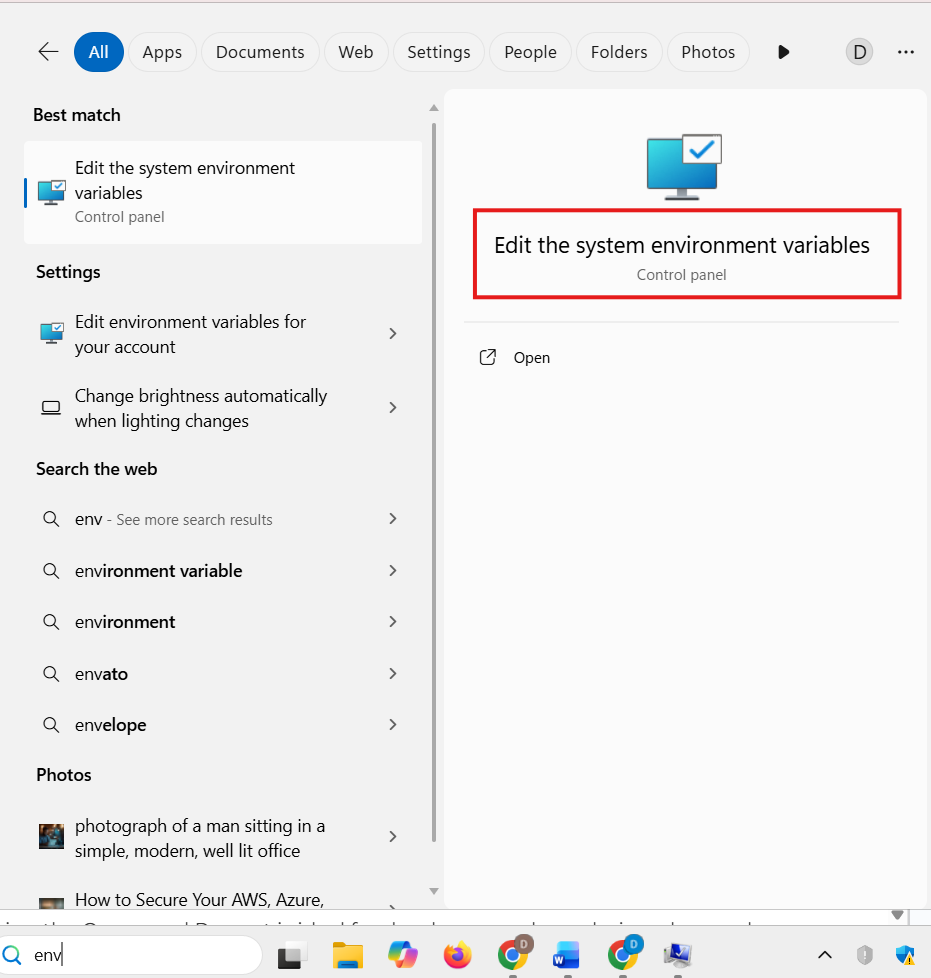
1. Press the Windows Key, search for “env,” and select Edit the system environment variables. This opens the System Properties window on the Advanced tab
2. Click the Environment Variables button at the bottom right to open the management menu

3. Decide which scope you need to modify
- The top box handles User variables (settings for just you)
- The bottom box handles System variables (global settings that affect every user on the PC)

4. Highlight a variable like Path and click Edit

5. Click New. For example, you might add a path like C:\EnterpriseTools\Scripts, which tells Windows to check that folder for executable files whenever you run a command

6. Click OK on all windows to save your work
Take Note: You must restart any open applications (like Chrome, VS Code, or Command Prompt) for these changes to take effect; otherwise, they’ll keep using the old cached versions of your variables.
Method 2: Command Prompt
Using the Command Prompt is ideal for developers and sysadmins who need to script automation or perform quick temporary overrides. This method allows you to set variables that only exist for as long as your terminal window stays open, which is perfect for testing.
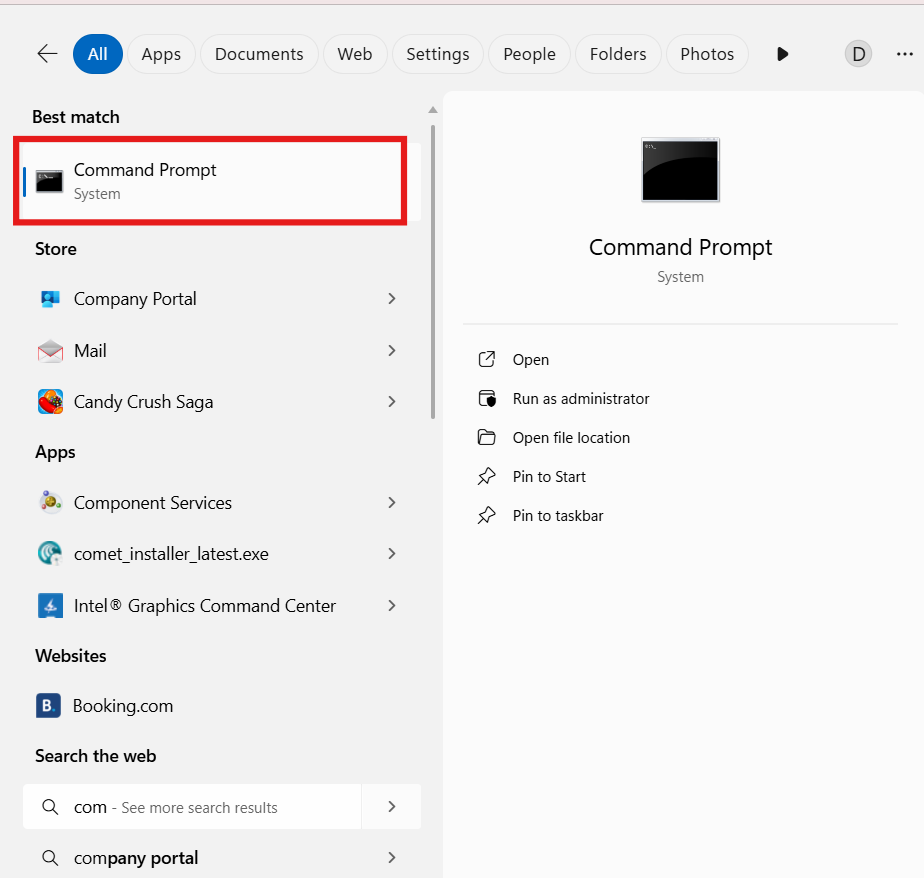
Type Command Prompt into your Windows search bar, and click “Run as administrator”
Depending on what you want to achieve, copy and paste one of the following commands into the window and press Enter.
Take note: The setx command has a 1,024-character limit. If you use it to edit a very long PATH variable, you risk truncating it and permanently corrupting your system paths. Always backup your Path before using setx.
1. List all variables: Paste set and press Enter to see every variable currently active in your session.

2. View a specific variable: Use the echo command, such as echo %PATH%, to see the value of one specific entry

3. Set a temporary variable: Paste set VAR_NAME=value (e.g., set MY_TEMP_DIR=C:\Logs).

4. Set a permanent variable: Use the setx command. For a user-level variable, paste: setx VAR_NAME "value"
To make it system-wide (requires Admin), paste: setx VAR_NAME "value" /m

Method 3: PowerShell
PowerShell is the standard for modern enterprise IT management because it treats environment variables like a virtual drive. This method is the most robust choice for administrators who need to manage thousands of endpoints at scale using automation scripts and .NET integration.
Type PowerShell into your Windows search bar, and click “Run as administrator”

Depending on what you want to achieve, copy and paste one of the following PowerShell commands into the window and press Enter.
1. Browse the Env: drive: Use dir Env:to list all environment variables. They are displayed like files in a folder, which makes it easy to review them or pipe the output into other enterprise tools for auditing

2. Access a variable directly: Use the $env:prefix to read a variable instantly, for example $env:COMPUTERNAME. This is commonly used in conditional logic within deployment or configuration scripts

Create a temporary variable: Paste $env:VAR_NAME = "value" to create a variable that exists only for the current PowerShell session
Make a variable permanent (User): Paste the following .NET command to create or update a variable for the current user:[System.Environment]::SetEnvironmentVariable("MyVar", "MyValue", "User")
Make a variable permanent (System):
Paste:[System.Environment]::SetEnvironmentVariable("MyVar", "MyValue", "Machine")
In a managed enterprise setting, manually running these commands on every computer is inefficient. Atera’s RMM platform simplifies this by allowing you to deploy these PowerShell scripts across your entire fleet of endpoints simultaneously. By leveraging Atera’s AI Copilot, you can instantly generate and verify complex .NET environment scripts without writing them from scratch.
This integration ensures that your configurations remain consistent and reduces the risk of human error during mass updates. Using a centralized platform like Atera’s RMM means you can monitor for “path shadowing” or missing variables from a single dashboard.
» Find out how to run PowerShell commands on a remote computer
Why changes don’t appear and how to diagnose
The most common reason for a “stuck” variable is that the program you are using is a “child” of another process that hasn’t been refreshed.
For example, if you change your settings but keep your IDE open, the IDE’s integrated terminal will still show the old values because it inherited them from the IDE, which inherited them from the Windows shell (explorer.exe).
- Verify the current value: Open a brand-new Command Prompt and paste echo %VAR_NAME% or open PowerShell and paste $env:VAR_NAME. If the new value appears here but not in your app, the app simply needs a refresh.
- The restart rule: Close the application entirely. If it’s a background app or a service, you may need to end the task in Task Manager to ensure it clears its cached environment.
- Check for path precedence: If you updated a tool like Python or Node but the old version still runs, the old path is likely listed higher in the Path variable than the new one. Windows stops searching as soon as it finds the first match.
- Restart the shell: If you don’t want to reboot, you can restart explorer.exe in Task Manager. Since the desktop shell is the “parent” of almost every app you launch via the Start menu, restarting it forces a refresh of the environment for any new apps you open.
» Make sure you understand the difference between PowerShell and Command Prompt
Environment management with Atera
Environment variables are the foundation of how your software interacts with Windows, and Atera’s RMM platform is the tool that helps you manage that foundation at scale. By centralizing these PowerShell methods and using Copilot for rapid scripting, you eliminate the guesswork that causes most IT issues.
This approach ensures your production environment remains secure and your deployment logic stays intact. Ultimately, Atera provides the visibility you need to keep your endpoints running at peak performance.
» Learn more about how Atera can help you with a free trial
Frequently Asked Questions
Related Articles

How to check if a disk is MBR or GPT in Windows
Choosing between MBR and GPT depends on your hardware and future storage needs, with GPT supporting larger drives and modern security features. You can check your disk’s partition style in seconds using Disk Management, Command Prompt, or PowerShell.
Read now
How to enable or disable the Action Center in Windows 10 and 11
The Action Center centralizes system alerts and quick toggles, but it requires specific background services and shell integrations to function correctly. While hiding the interface stops visual distractions, notifications still process in the background, making proactive management necessary for security.
Read now
How to change file associations in Windows 10 and 11
Windows file associations follow a priority system that decides which app opens your files, and problems usually happen when those links break or apps aren’t registered correctly. You can fix or change them using built-in tools, while automation platforms make large-scale management much easier.
Read now
How to fix the “vcruntime140.dll not found” error in Windows 11
The "vcruntime140.dll" error usually happens because of missing or corrupt Visual C++ Redistributables. To fix it safely, verify your system architecture and reinstall the official Microsoft packages for both x86 and x64.
Read nowEndless IT possibilities
Boost your productivity with Atera’s intuitive, centralized all-in-one platform













