Generate summary with AI

If you’ve recently switched to Windows 11, you probably noticed that the right-click menu looks a lot cleaner, but it often hides the settings you actually need behind an extra click. It’s one of those small changes that can really slow down your workflow when you’re used to having everything right there. While the new look is sleek, many of us just want our old, efficient menu back. The good news is that you don’t have to live with the extra clicks if you don’t want to.
In this blog, we will walk you through the simple registry and PowerShell steps to bring back the classic menu and show you how to automate this change across all your devices.
What to know before changing the Windows 11 right-click menu
Before setting “Show more options” as the default in Windows 11, it’s worth understanding the system-level factors that control how context menus work. These settings aren’t purely visual. They rely on shell components, hardware, and permissions, and can cause operational issues if changed without planning, especially in business or managed environments.
Shell components & dependencies
Windows 11 context menus are built using a modern XAML shell UI layered over legacy Win32 shell extensions. The simplified menu hides advanced actions, while the classic menu relies on older components.
Key dependencies include:
- Explorer.exe
- Legacy shell extensions
- Registry handlers under HKCR\*\shellex\ContextMenuHandlers
Configuration decisions must balance usability against update resilience, as Windows updates may reset or override shell-related customizations.
» Here’s how to disable Windows updates and manually re-enable Windows updates
Hardware profiles, user roles & endpoint models
Customization of context menus is constrained by hardware profiles and user roles. On tablets, the simplified modern menu is preferred for touch usability, while desktops benefit from access to full legacy options. Standard users typically lack permission to edit the registry or Group Policy, whereas administrators can enforce changes using XML or PowerShell scripts.
Endpoint management models also define flexibility:
- Standalone PCs allow direct changes through manual registry edits or third-party tools.
- Domain-joined devices rely on Group Policy to apply consistent settings across users .
- MDM-managed endpoints (Intune, Atera) use XML-based deployments to apply and scale configuration changes across large device fleets.
A real-world example can be seen in education environments, where schools using Windows 11 Education apply Intune profiles to simplify student menus, while enterprise IT environments often revert to classic menus to improve IT efficiency.
Operational risks
Before modifying default context menu behavior in production environments, organizations need to account for update resilience and third-party integration risks. Context menu customizations depend heavily on the Windows shell and can be affected by feature and cumulative updates.
Key risks to evaluate include:
- Windows updates can reset registry keys or override XML layouts, causing enforced context menu behavior to revert without warning.
- Third-party applications that rely on shell extensions may lose functionality if the classic context menu is forced, impacting tool integration and daily workflows.
- Inconsistent menu behavior across devices can disrupt support and productivity, especially when customizations are not centrally managed or tested.
Strategic limitations & alternatives to UI enforcement
Organizations must weigh the “familiarity” of the classic menu against long-term system integrity. While registry hacks are popular, they are often unsuitable for high-stakes environments.
IT departments should avoid forcing the classic context menu in hardened environments where security, compliance, or stability are the primary goals. In regulated sectors like finance or healthcare, unsupported UI modifications can:
- Conflict with Windows updates: Future patches may reset or break the registry key, causing “Explorer.exe” crash loops.
- Violate audit standards: Custom registry tweaks can flag compliance issues during security audits.
How to always show the classic context menu in Windows 11
The methods for showing the classic menu context in Windows 11 might seem complicated, since they involve editing the registry or using command-line utilities like PowerShell, but they’re actually really simple. Here’s how:
Method 1: Registry Editor
Warning: Editing the registry can break your system if done incorrectly. Always back up your registry before making changes.
1. Search “Registry Editor” in your search bar and click “run as administrator”

2. In the Registry Editor, navigate to HKEY_CURRENT_USER\Software\Classes\CLSID and create a new key named {86ca1aa0-34aa-4e8b-a509-50c905bae2a2}.

3. Inside this new key, create a subkey named InprocServer32.

4. Select the InprocServer32 key and make sure that the default value is empty. Do not type anything; leaving it blank is required for the classic menu to load.
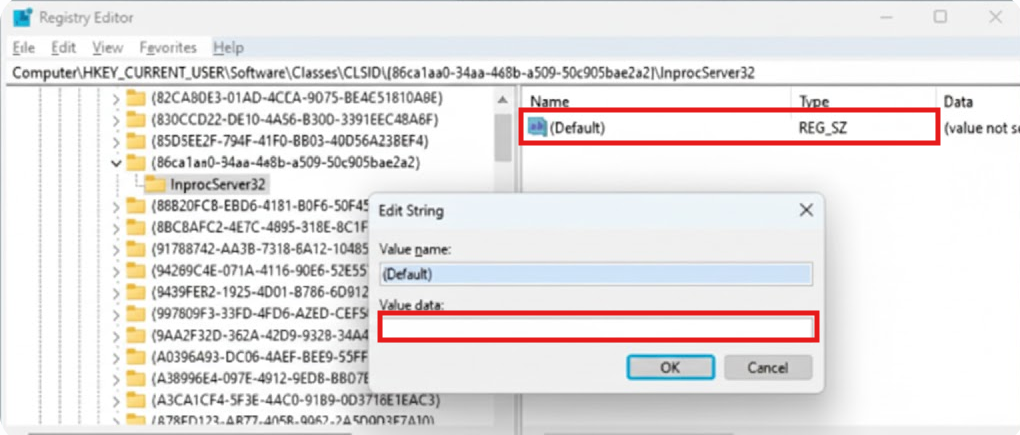
5. Restart Windows Explorer to apply the change. You can do this by pressing Ctrl + Shift + Esc to open Task Manager, locating Windows Explorer in the list, right-clicking it, and selecting Restart.
6. The classic context menu is now enabled by default.
» Here are the top registry editor challenges & solutions
Method 2: PowerShell
If you aren’t comfortable clicking through folders in the Registry Editor, PowerShell is a much faster way to get the job done. By running a single line of code, you can tell Windows to bypass the new menu style.
1. Open PowerShell as administrator
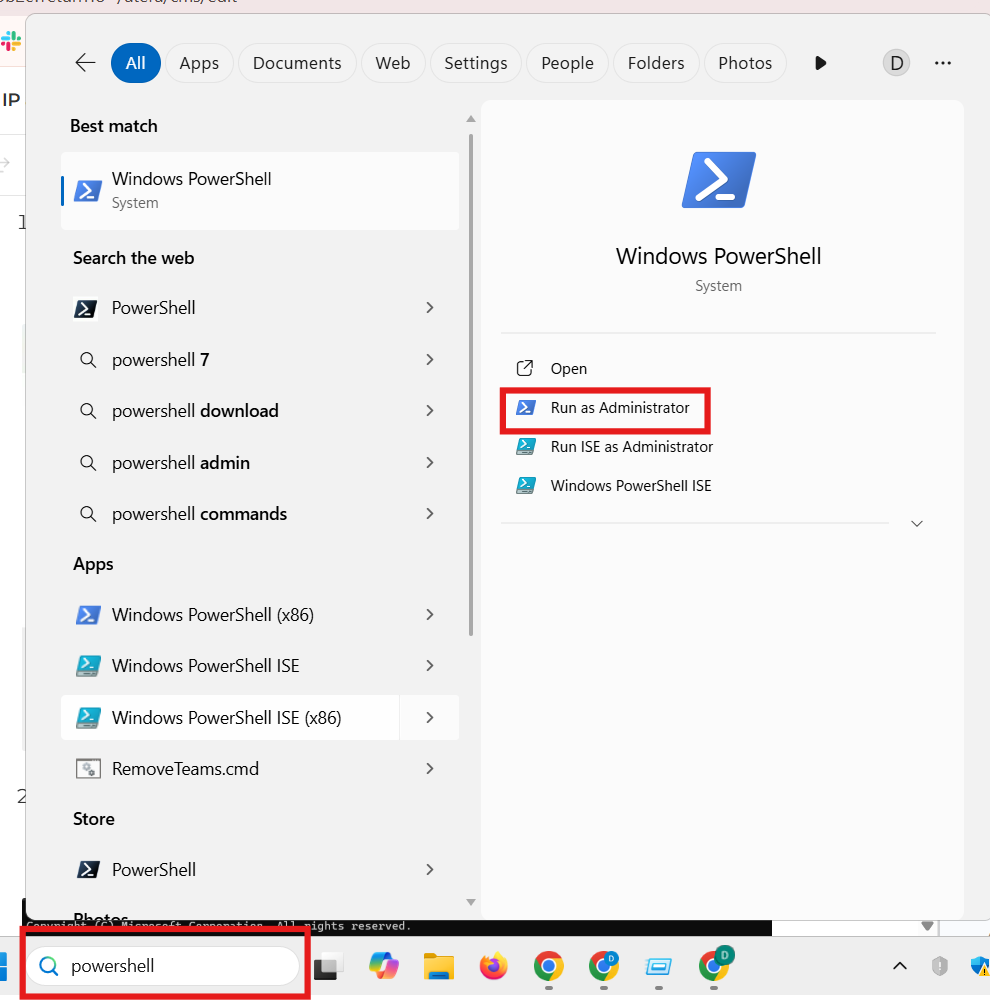
2. Run the command to create the registry key: reg add "HKCU\Software\Classes\CLSID{86ca1aa0-34aa-4e8b-a509-50c905bae2a2}\InprocServer32" /f

3. This creates the CLSID key and leaves the default value empty, which tells Windows to use the classic menu.
4. Right-click any file or folder. The full Windows 10-style context menu should now appear by default, without needing “Show more options.”
Did you know? You don’t need to be an expert in coding to handle these kinds of advanced system tweaks. Atera’s AI Copilot uses a process called “vibe coding,” which allows you to generate precise PowerShell scripts just by describing what you want in plain English.
For example, you can simply ask the AI Copilot to “Generate a script to enable the classic Windows 11 right-click menu.” It will instantly provide the exact code needed, which you can then deploy remotely to any or all of your managed endpoints through the RMM platform.
Making your IT life easier with Atera
Manually changing registry keys on a single computer is simple enough, but doing it for an entire fleet of devices can quickly become a major drain on your time. Atera’s RMM platform and AI Copilot work together to turn this manual headache into a streamlined, one-click process.
Once the script is generated, the RMM platform allows you to push that change out to specific departments or your entire organization simultaneously. This approach ensures your endpoints stay consistent and your users stay productive, all while removing the risk of human error that comes with manual registry edits.
» Interested? Start a free trial with Atera
Frequently Asked Questions
Related Articles

How to check if a disk is MBR or GPT in Windows
Choosing between MBR and GPT depends on your hardware and future storage needs, with GPT supporting larger drives and modern security features. You can check your disk’s partition style in seconds using Disk Management, Command Prompt, or PowerShell.
Read now
How to enable or disable the Action Center in Windows 10 and 11
The Action Center centralizes system alerts and quick toggles, but it requires specific background services and shell integrations to function correctly. While hiding the interface stops visual distractions, notifications still process in the background, making proactive management necessary for security.
Read now
How to change file associations in Windows 10 and 11
Windows file associations follow a priority system that decides which app opens your files, and problems usually happen when those links break or apps aren’t registered correctly. You can fix or change them using built-in tools, while automation platforms make large-scale management much easier.
Read now
How to fix the “vcruntime140.dll not found” error in Windows 11
The "vcruntime140.dll" error usually happens because of missing or corrupt Visual C++ Redistributables. To fix it safely, verify your system architecture and reinstall the official Microsoft packages for both x86 and x64.
Read nowEndless IT possibilities
Boost your productivity with Atera’s intuitive, centralized all-in-one platform













