
Generate summary with AI

Unexpected file openings or drag-and-drop behavior can disrupt everyday work. What often begins as an occasional issue may gradually become more frequent. These problems are commonly linked to hardware wear, driver issues, or wireless signal interference.
Not every problem comes from the device itself, many double-click issues are linked to operating system settings, driver conflicts, or power management quirks. In this blog, we’ll break down how to identify the type of double-click problem and follow a clear step-by-step approach to fix it on Windows, macOS, and Linux.
The 4 types of double-click failures
Mouse double-clicking can be grouped into four failure types:
- Mechanical wear: This is the most common cause. Worn microswitches misfire after millions of actuations. The click often feels soft, and the issue appears consistently across reboots, user profiles, and even different PCs.
- Electrical bounce: The click feel is normal, but unstable contact signals create duplicate click events that feel intermittent or inconsistent, making it more difficult to diagnose or confirm.
- Driver or software behavior: These issues relate to OS state, HID drivers, or user profile corruption. The problem may disappear after reboots, driver reloads, or settings changes, making this the lowest troubleshooting priority.
- Firmware logic issues: These issues are reversible and usually resolved with firmware updates or rollbacks, so they are investigated later to avoid spending time on failing hardware
How to fix mouse double-clicking on Windows
This workflow follows a practical order used in production to quickly identify and resolve double-click issues.
Method 1: System settings check
When to use: Use this first whenever the double-clicking starts suddenly, after sleep mode, reboot, or a power fluctuation, and the mouse was working normally before.
Follow these steps:
1. Open Settings > Bluetooth & devices > Mouse > Additional mouse settings.

2. This opens the classic Mouse Properties dialog.

3. Adjust the Double-click speed slider (move right for faster recognition, left for slower).

4. Test the adjustment using the built-in test area: Right next to the slider is a test folder icon (looks like a folder). Single-click it repeatedly, watch for:
- Normal behavior: One clean highlight/selection per click.
- Problem behavior: Flicker, double highlight, or open on single click (indicating the OS interprets it as double).

Method 2: Driver remediation
When to use: Apply this step if adjusting system settings does not resolve the issue, particularly after a Windows update or when input behavior feels inconsistent and may be linked to a driver update rather than hardware wear.
Follow these steps:
1. Open Device Manager.

2. Expand Mice and other pointing devices.

3. Right-click and uninstall the HID-compliant mouse driver.

4. Reboot the PC and test with slow single clicks in File Explorer and on desktop icons.
» Here are the best driver updater software
Method 3: Vendor utilities
When to use: Use this for branded or gaming mice, such as Logitech, Dell, or HP, that have configurable firmware or click sensitivity options.
Follow these steps:
- Open the manufacturer utility.
- Check firmware version, debounce settings, and click sensitivity.
- Apply updates or changes and test the mouse again.
Pro tip: Replace the mouse if double-clicking persists after all three methods because there is a 60–70% probability of permanent microswitch failure.
How to fix mouse double-clicking on macOS
macOS double-click issues are particularly sensitive to click timing thresholds, sleep/resume states, and pointer filtering. Using a structured approach with system settings, accessibility filters, and vendor utilities or firmware tools ensures software problems are resolved before suspecting hardware.
Method 1: System settings
When to use: Use this first whenever double-clicking starts suddenly, after a macOS upgrade, sleep mode, or reboot, or if clicks feel unusually fast or inconsistent.
Follow these steps:
1. Open System Settings > Mouse.
2. Adjust the Double-click speed slider (move left for slower, more forgiving timing).

3. Test by single-clicking Finder or desktop icons:
- Healthy: One clean highlight per click
- Problematic: Icon flashes twice or opens on a single click
Method 2: Accessibility
When to use: Use this if the issue persists after adjusting system settings, especially for micro-movement, repeated input, or dragging problems.
Follow these steps:
1. Open System Settings > Accessibility > Pointer Control (or Mouse & Trackpad in older layouts).

2. Enable Mouse Keys temporarily or adjust Ignore built-in trackpad / pointer filters.

3. Test by dragging files or clicking icons:
- Success: No sticking, premature release, or repeated clicks
- Problem: Dragging sticks or icons flash multiple times
Method 3: Third-party tools & firmware
When to use: Use this for Logitech, Apple Magic Mouse, or other branded mice if system and accessibility adjustments do not resolve the problem.
Follow these steps:
1. Open the vendor utility (e.g., Logi Options+).
2. Check and apply firmware updates.
3. Adjust click sensitivity or debounce settings if available.
4. Retest single-click behavior.
How to fix mouse double-clicking on Linux
Linux double-click issues often trace to hardware bounce amplified by worn microswitches, but the Linux input stack allows confirmation using software tools.
Step 1: Checking & updating firmware
When to use: Use this first whenever double-clicking occurs on Logitech mice, especially if adjusting system or driver settings has not fixed the issue.
Follow these steps:
1. Launch Logi Options+ (download from Logitech if needed).

2. Select your device (e.g., G502) and open the Firmware section.
3. Look for an Update button and apply the firmware update if available.
4. Confirm the firmware version is current.
5. Test single-click behavior on desktop or in File Explorer/Finder.
Step 2: Adjusting debounce settings
When to use: Use this if the firmware is up-to-date but double-clicking continues, especially on heavily used mice.
Follow these steps:
- Navigate to Device Settings or Profiles in Logi Options+.
- Locate debounce settings (some devices expose sliders; others require advanced profile tweaks).
- Increase the debounce time (e.g., from 5 ms > 15 ms).
- Optionally, use third-party tools like X-Mouse Button Control for 10–50 ms delays.
- Retest by single-clicking icons, they should now highlight once cleanly instead of flickering or double-selecting.
Step 3: Vendor software profiles & OS overrides
When to use: Use this if firmware updates and debounce adjustments do not resolve double-clicking, or if OS inconsistencies affect click behavior.
Follow these steps:
1. Adjust per-profile click behavior in Logi Options+ or the device utility.
2. For enterprise deployments, apply Windows Group Policy templates or other management tools to enforce firmware behavior across endpoints.
3. Test the mouse under normal usage to confirm single-click behavior.
» Learn more about group policy management with Atera
How to troubleshoot mouse double-clicking with PowerShell
PowerShell can be a handy tool for diagnosing double-click problems caused by drivers, OS settings, or software conflicts. While it won’t fix worn hardware or mechanical issues, it can help you confirm whether the mouse and drivers are functioning correctly before moving on to firmware updates or replacements.
Follow these steps:
1. Search “PowerShell” in the search bar and click “Run as administrator”

2. Check connected mice: Get-PnpDevice -Class Mouse
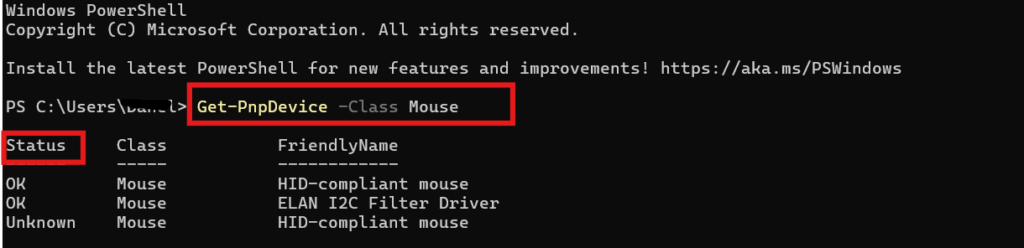
This will show all mice recognized by Windows. Make sure your device appears and its status says “OK.” If the mouse isn’t listed, Windows may not be detecting it properly, which could explain unexpected double-clicking
3. Verify USB connections: Get-PnpDevice -PresentOnly | Where-Object {$_.FriendlyName -like " USB "}
This command shows all USB devices currently detected by Windows, helping you confirm that your mouse receiver or wired mouse is properly connected.

While PowerShell provides powerful troubleshooting options, it can be intimidating for users who aren’t familiar with command-line tools. Atera’s RMM platform simplifies the process by allowing technicians to run these checks and fixes remotely, without walking users through complex steps.
Even better, AI Copilot can generate scripts instantly from plain-text instructions. Instead of worrying about the exact commands, simply describe the issue, such as “fix double-clicking on the user’s mouse”, and AI Copilot creates a ready-to-run script in seconds.
» Did you know you can paste in PowerShell?
Keep your devices clicking smoothly
Mouse double-clicking can start as a small annoyance but quickly slows down productivity, whether it’s on a single workstation or across a whole office. Most issues can be resolved by checking system settings, refreshing drivers, and using PowerShell to apply quick fixes. These steps help determine whether the problem is temporary, software-related, or caused by hardware wear.
For IT teams managing multiple devices, Atera’s RMM platform makes troubleshooting simple. Technicians can run PowerShell fixes and apply system changes remotely, so double-clicking issues can be diagnosed and resolved without asking users to follow complicated instructions.
» Sound good? You can try Atera for free
Frequently Asked Questions
Related Articles

How to check if a disk is MBR or GPT in Windows
Choosing between MBR and GPT depends on your hardware and future storage needs, with GPT supporting larger drives and modern security features. You can check your disk’s partition style in seconds using Disk Management, Command Prompt, or PowerShell.
Read now
How to enable or disable the Action Center in Windows 10 and 11
The Action Center centralizes system alerts and quick toggles, but it requires specific background services and shell integrations to function correctly. While hiding the interface stops visual distractions, notifications still process in the background, making proactive management necessary for security.
Read now
How to change file associations in Windows 10 and 11
Windows file associations follow a priority system that decides which app opens your files, and problems usually happen when those links break or apps aren’t registered correctly. You can fix or change them using built-in tools, while automation platforms make large-scale management much easier.
Read now
How to fix the “vcruntime140.dll not found” error in Windows 11
The "vcruntime140.dll" error usually happens because of missing or corrupt Visual C++ Redistributables. To fix it safely, verify your system architecture and reinstall the official Microsoft packages for both x86 and x64.
Read nowEndless IT possibilities
Boost your productivity with Atera’s intuitive, centralized all-in-one platform













