
Generate summary with AI

Building a reliable Windows environment often means moving files around or restructuring folders without breaking the apps that rely on them. You might be migrating data to a new drive or helping a piece of legacy software find its configuration files in a different spot.
In these moments, standard shortcuts won’t cut it because they don’t fool the underlying system. You need a way to link folders that feels “real” to every piece of software you run. In this blog, we’ll explain the technical requirements for a symbolic link (symlink) and show you how to create and manage them across your network.
Considerations before using symlinks in Windows
Symlinks in Windows are filesystem objects that point one file or folder path to another location. They are handled by New Technology File Systems (NTFS) using reparse points, which means Windows resolves the link at the moment an application accesses it.
To most applications, a symlink looks and behaves like the original file or directory, even if the data physically lives on another drive or volume. This makes symlinks useful for:
- Storage management
- Application layouts
- Build systems
Take note: This also means they can affect access control, performance expectations, and troubleshooting if used without planning.
» Don’t miss our guide to updating drivers or skip directly to the best driver updater software
Differences between symbolic links, hard links, and junction points
Essentially, symlinks are the most flexible option, while hard links are the most storage-efficient, and junctions are the most limited. The differences include:
- Symlinks can reference both files and folders and are not limited to a single drive. They can point to locations on other volumes or even to network paths. Instead of containing the data itself, a symlink stores the path to its target, which NTFS resolves at the moment the link is accessed.
- Hard links are more restrictive and apply only to files. They must exist on the same NTFS volume as the original file and reference the same underlying file record on disk. Because of this, the data remains intact as long as at least one hard link still exists, even if the original file name is deleted.
- Junction points are designed exclusively for directories and are confined to the same local volume. Their main purpose is maintaining compatibility with older Windows software, and they cannot point to network locations or removable storage devices.
How to create symlinks in Windows
Before setting up a symlink in Windows, it’s important to confirm that the underlying file system and security settings support symlink creation to prevent access issues or broken links.
- The storage volume must use NTFS, as symlinks rely on NTFS reparse points and won’t work on exFAT or on a USB drive formatted to FAT32.
- The user must have write permissions on the parent directory, including the ability to create files or folders under existing NTFS access control lists.
- The system must allow symlink creation privileges, either by running with administrator rights or by enabling Developer Mode on Windows 10 version 1703 or later.
In enterprise environments, group policies and IT restrictions may further control or block symlink creation, so checking with your system administrator is recommended.
» Make sure you know the difference between NTFS and FAT
Did you know? Creating a symlink no longer always requires an elevated Command Prompt in modern Windows. While symlinks historically needed a “Run as Administrator” session, standard users can now create them by enabling Developer Mode.
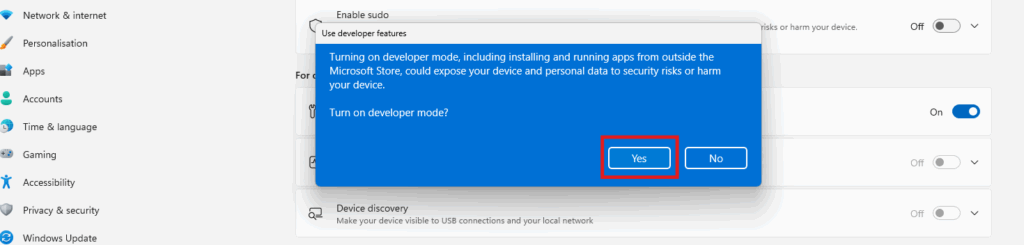
Follow these steps to enable Developer Mode:
1. Open the Settings app

2. Navigate to System > Advanced

3. Toggle the Developer Mode switch to On

4. Confirm the prompt that appears
“This is the most efficient setup for engineers who need to create links frequently without constant UAC prompts.”
Harris Emekayobo
Once enabled, you can use the following methods in a standard Command Prompt or PowerShell window without needing to “Run as Administrator.”
Method 1: Command Prompt
This method is most commonly used by system administrators, IT engineers, and support staff who work directly on servers or desktops. It’s best suited for one-off changes, troubleshooting, or restructuring application paths during migrations.
Follow these steps:
1. Open Command Prompt

2. Navigate to the directory where you want the link to appear
- For a file link, type:
mklink LinkName TargetPath - For a directory link, type:
mklink /D LinkName TargetPath - For a junction (local folders only), type:
mklink /J LinkName TargetPath
3. Press Enter and confirm that Windows reports the link was created successfully
Remember: Symlinks created this way can cross volumes and point to network paths, while junctions are limited to local disks but resolve slightly faster in NTFS.
Method 2: PowerShell
This method is preferred by IT administrators, DevOps engineers, and anyone managing repeatable deployments. It is best for automation, scripting, and environments where links must be created consistently across many systems.
Follow these steps:
1. Open PowerShell

2. Use the following command format and press Enter to create the link New-Item -ItemType SymbolicLink -Path "LinkPath" -Target "TargetPath"
Add -Force if the destination path already exists

3. Verify the link appears with the symlink arrow overlay in File Explorer
» Here’s our guide to running PowerShell commands on a remote computer
Did you know? Atera’s RMM platform manages your endpoints by providing a centralized view of every device’s filesystem. Instead of logging into computers one by one, you can oversee your entire environment from a single dashboard to ensure your symlink configurations stay consistent across every department.
When you need to deploy these symlinks to dozens of computers, Atera’s AI Copilot removes the manual grind of writing scripts. You can simply just ask Copilot to write a PowerShell script to create directory symlinks for all endpoints, and it will generate the precise code instantly. By handling the syntax and logic for you, it allows for a reliable, automated workflow that keeps your infrastructure organized with just a few clicks.
» Find out how to paste in PowerShell
Best practices for maintaining symlinks
Symlinks are only as reliable as the processes around them. In enterprise IT environments, proper maintenance, auditing, and removal are essential to prevent broken dependencies, security risks, or configuration drift.
- Audit symlinks regularly: Use PowerShell to enumerate symlinks with:
Get-ChildItem -Recurse -Attributes ReparsePointThis command scans directories and lists all symlinks. Regular auditing ensures that every symlink points to a valid target, helping you spot broken or inaccessible links before they cause application errors or downtime. - Integrate symlinks with configuration management: Include symlinks in deployment and automation scripts. By doing this, any missing or misconfigured targets are automatically detected and corrected, reducing the risk of broken dependencies or failed builds.
- Control permissions carefully: Place symlinks in directories with restricted NTFS permissions. This prevents unauthorized users or applications from accessing sensitive targets, protecting both security and compliance requirements in enterprise environments.
- Safe removal of symlinks: When deleting symlinks, always use
Remove-Item
in a scripted and logged process. This ensures that no application silently depends on the symlink, preventing unexpected errors or data loss. - Schedule regular reviews: Combine auditing, permissions checks, and configuration management into a routine process. This reduces broken references, maintains system consistency, and prevents configuration drift over time.
» Here are essential scripts that every IT professional needs to know
Keep your file system organized and reliable with Atera
Symbolic links are a versatile resource for any IT professional, providing the flexibility to redirect data without confusing your applications or users. Whether you are optimizing storage or managing complex software deployments, understanding how these links interact with NTFS is the key to a stable environment. By using the right methods, whether manual or through PowerShell, you can ensure your file structure remains both logical and high-performing.
Managing these advanced setups doesn’t have to be a headache. Atera’s IT management software helps you keep your network in check by providing the monitoring and management tools you need to prevent system inconsistencies. Through our RMM platform and the intelligence of AI Copilot, you can manage symlinks, audit your systems, and deploy scripts across your entire organization with total confidence.
» Ready to get started? Start a free trial with Atera or contact sales
Frequently Asked Questions
Related Articles

How to check if a disk is MBR or GPT in Windows
Choosing between MBR and GPT depends on your hardware and future storage needs, with GPT supporting larger drives and modern security features. You can check your disk’s partition style in seconds using Disk Management, Command Prompt, or PowerShell.
Read now
How to enable or disable the Action Center in Windows 10 and 11
The Action Center centralizes system alerts and quick toggles, but it requires specific background services and shell integrations to function correctly. While hiding the interface stops visual distractions, notifications still process in the background, making proactive management necessary for security.
Read now
How to change file associations in Windows 10 and 11
Windows file associations follow a priority system that decides which app opens your files, and problems usually happen when those links break or apps aren’t registered correctly. You can fix or change them using built-in tools, while automation platforms make large-scale management much easier.
Read now
How to fix the “vcruntime140.dll not found” error in Windows 11
The "vcruntime140.dll" error usually happens because of missing or corrupt Visual C++ Redistributables. To fix it safely, verify your system architecture and reinstall the official Microsoft packages for both x86 and x64.
Read nowEndless IT possibilities
Boost your productivity with Atera’s intuitive, centralized all-in-one platform













