
Table of contents
Table of contents
- What is the Remote Desktop web client?
- When to use the Windows Remote Desktop Web Client
- What you need to use the Windows Remote Desktop web client
- 4 easy steps to start running the Windows Remote Desktop web client
- Performing key functions with the Microsoft Remote Desktop web client
- Use remote connection like an IT pro
Generate summary with AI

Ever wondered how you can access your work computer from home, or provide uninterrupted remote support to a client without installing bulky software? Your solution has arrived, the Windows Remote Desktop web client.
Today, we’re going to learn more about the Windows Remote Desktop web client, walking you through everything from the basics to how to perform functions remotely. This browser-based platform is a great tool for IT teams. By the end of this article, you’ll have a complete understanding of how, why, and when to use the remote desktop web client from Microsoft.
What is the Remote Desktop web client?
The Remote Desktop web client offers users a way to access their organizations remote desktops and applications through a web browser. That means that users can interact with apps or desktops from a remote location in the same way they would if they were sitting in the office in front of their work computer. The Remote Desktop web client is also a helpful tool for IT technicians who are providing customer support and working to resolve tickets.
Browser-based access is a major perk of the Microsoft remote desktop web client and sets it apart from the traditional Remote Desktop Connection (RDC) client. The RDC client requires installing a dedicated application.
On the other hand, the web client does not require downloading and installing an application. Instead, you simply go to the remote desktop web client URL in order to use it.
Let’s dive a little bit deeper into the Windows remote desktop web client, its use cases, and how to access this helpful tool.
When to use the Windows Remote Desktop Web Client
So, why would you need to access desktops that are not right in front of you? There are many reasons that the remote desktop web client (often abbreviated as simply the RDP web client) can be useful, ranging from tech support to remote work and more. Here are a few examples:
Remote work and inter-team collaboration
Having access to a remote desktop helps employees access their work computers and their files from home and while they are traveling, which facilitates remote work and productivity. Additionally, employees can build their own schedules and develop a stronger work-life balance by accessing work-related resources outside of traditional business hours. Plus, employees can work together on projects, share resources, and edit documents together even when they are not located in the same place.
Tech support and ticket resolution
IT professionals can benefit from remote desktop tools as they try to diagnose and fix problems on user devices. They can get a clear look at what is going on with a remote device without needing to be physically present. This can also lead to improved KPIs, or key performance indicators, such as faster mean time to resolution for ticketing and helpdesk.
IT management and system administration
A remote desktop web client can help IT administrators manage servers, devices, and other resources from one central location. Additionally, it is easier to facilitate updates, installations, and other maintenance tasks from a remote device. Remote access allows for better monitoring of the status of devices, and remotely controlling them enhances overall system management.
What you need to use the Windows Remote Desktop web client
In order to start using the remote desktop web client, you need just three things:
- A supported operating system: You need to be using a PC running Windows, macOS, ChromeOS, or Linux. At this time, the Microsoft Remote Desktop web client does not support mobile devices like smartphones or tablets.
- A modern browser: Options like Microsoft Edge, Apple Safari, Google Chrome, or Mozilla Firefox v55.0 and later should work.
- A URL from your admin: In order to run access devices remotely, you will need a remote desktop web client URL from your system administrator. This helps ensure users are only accessing approved devices and helps maintain security.
If you have those three components, then you are ready to get started. Now, let’s talk about how to get the web client up and running. Unlike the traditional Remote Desktop Connection, there is no remote desktop web client download. Because this is a browser-based program, there is no need to download and install a separate application.
4 easy steps to start running the Windows Remote Desktop web client
Let’s walk through the steps to get started with the browser-based Windows remote desktop.
1. Sign in
Go to the URL that your admin sent you. Enter your domain and user name in the format DOMAIN\username. Then enter your password and select “Sign In.”
2. Visit the “All Resources” tab
Once you have signed in, you will be directed to the “All Resources” tab. This location contains items that have been published to you under one or more collapsible groups. You will see several icons that represent apps, desktops, or folders that your admin has made available to you. You can always come back to this tab to open additional programs.
At this stage, you might see a pop-up box that asks you to consent to using local resources, like clipboard and printer. You can choose not to redirect either of these, or you can select “Allow” to use the device’s default settings.
3. Choose an application
Now that you have seen the applications available to you, you can choose which one to open. To start using an app or desktop, select the item that you want to use. In some cases, you may have to re-enter your user name and password. Once the web client establishes the connection, you can start using the resources just as you normally would.
4. End your session
When you are finished using the remote desktop web client, you can end your session by clicking the “Sign Out” button on the tool bar. You can also end the session by simply closing the browser window on which you are working.
Performing key functions with the Microsoft Remote Desktop web client
Now that you know the basics of how to use the Windows Remote Desktop web client, let’s take a closer look at a few key functions that you may want to perform.
Printing with the Remote Desktop web client
Can you print using the web client? The short answer is, yes! But there are a few extra steps if you are trying to print a document to your local printer while working on a remote desktop. Here is what you will need to do:
- Start the printing process as you normally would from the app in question.
- When you‘re asked to choose a printer or destination, select “Remote Desktop Virtual Printer.”
- Select “Print” after choosing the relevant preferences.
- The browser web client will generate a PDF file of your print job.
- You can save the PDF to your PC for later use, or you can open the PDF and print its contents on your local printer.
Transferring files with the Remote Desktop web client
There are two different processes for transferring files into the remote session and out of the remote session. To upload files from your computer to the remote session, follow these steps:
- When connected to the remote session, select the “File Upload” icon in the web client menu. It looks like this:
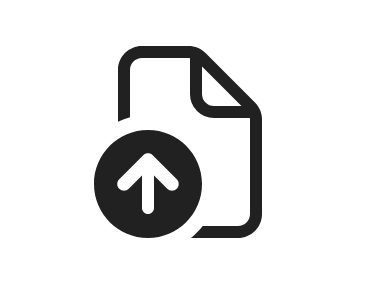
Image via Microsoft Learn
- Select the files you want to upload using the local file explorer, which will pop up after you click the “File Upload” button.
- Open the file explorer in your remote session. You will find the files under Remote Desktop Virtual Drive > Uploads.
Now, if you are looking to download files from the remote session to your computer, follow these steps instead:
- Open the file explorer in your remote session.
- Copy or drag the file(s) you want to download to Remote Desktop Virtual Drive > Downloads. (Note: There is a file size limit of 255 MB).
- You will be prompted to confirm the download. To continue downloading, select “Confirm.” You can also choose “Cancel” if you have made a mistake and would like to terminate the downloading process.
- Find your files in your local downloads folder.
Using copy and paste with the Remote Desktop web client
Many users are initially confused by the copy and paste functions on Microsoft’s Remote Desktop web client. That is because the web client currently supports copy and paste for text only. Files cannot be copied or pasted to or from the web client. If you are looking to move files with the Microsoft web client, check out detailed instructions in the “Transferring files” section above.
Copying and pasting text with the Remote Desktop web client is just like normal, you just need to use the Ctrl+C and Ctrl+V keyboard shortcuts. Or, you can right click the selected text and click Copy, and then right click where you’d like to paste the text and click Paste.
Use remote connection like an IT pro
Are you ready to make the most of the remote access? Now that you understand the ins and outs of the Windows Remote Desktop web client, you’re ready to go!
Here at Atera, we’re here to help with an all-inclusive RMM (remote monitoring and management) solution. With Atera’s suite of tools, including some that are powered by Autonomous AI, you’ll be able to manage your devices more efficiently than ever before. With built-in remote connection software, you’ll never need to worry about how you’re going to access employee devices again.
Want to see and experience the Atera difference for yourself? Get started with your free 30-day trial today!
Related Articles

How to check if a disk is MBR or GPT in Windows
Choosing between MBR and GPT depends on your hardware and future storage needs, with GPT supporting larger drives and modern security features. You can check your disk’s partition style in seconds using Disk Management, Command Prompt, or PowerShell.
Read now
How to enable or disable the Action Center in Windows 10 and 11
The Action Center centralizes system alerts and quick toggles, but it requires specific background services and shell integrations to function correctly. While hiding the interface stops visual distractions, notifications still process in the background, making proactive management necessary for security.
Read now
How to change file associations in Windows 10 and 11
Windows file associations follow a priority system that decides which app opens your files, and problems usually happen when those links break or apps aren’t registered correctly. You can fix or change them using built-in tools, while automation platforms make large-scale management much easier.
Read now
How to fix the “vcruntime140.dll not found” error in Windows 11
The "vcruntime140.dll" error usually happens because of missing or corrupt Visual C++ Redistributables. To fix it safely, verify your system architecture and reinstall the official Microsoft packages for both x86 and x64.
Read nowEndless IT possibilities
Boost your productivity with Atera’s intuitive, centralized all-in-one platform













