
Generate summary with AI

When you first boot up your new PC (whether it’s a branded OEM or something you built yourself), you might notice a bunch of processes booting up alongside it. Then your startup times get worse and worse with the more programs you install as each one automatically gets set to “launch on startup”.
But this doesn’t have to be an endless cycle where you just accept the slow boot times, performance issues, and increasing frustration. Managing Windows startup programs to keep your boot times fast can actually be a quick and simple process. Here’s everything you need to know.
WARNING: The critical startup programs you shouldn’t mess with
Before diving into startup optimization techniques, you should understand one fundamental rule: not all startup programs are created equal. Some can be safely disabled to boost performance, but others are so critical to Windows’ core functionality that touching them could destroy your usability.
Windows depends on several core processes that launch during startup to maintain basic system operations. Components like Winlogon, Session Manager Subsystem (smss.exe), and CSRSS (Client/Server Runtime Subsystem) are absolutely indispensable. Attempting to disable or modify these processes risks system crashes, corrupted login sequences, or complete boot failures.
These processes operate at the system level, launching before any user logs in and running with elevated permissions. Unlike user-level applications that affect individual sessions, system-critical processes interact with hardware, enforce security policies, and affect all users. Antivirus engines, network agents, and device drivers fall into this category and pose a higher security risk if messed with.
User-level startup programs are initiated after a user logs in and typically run with standard privileges, meaning they can’t modify system-wide settings or access protected resources. Examples include chat apps, cloud sync tools, or clipboard managers. These processes have lower priority and are isolated per user session, reducing their impact on system stability.
» Here are our picks for the best driver updater software
Essential services you should preserve on all Windows editions
Beyond core processes, Windows automatically enables several services during a fresh installation to ensure security, network connectivity, and system stability. These include:
- Windows Defender Antivirus (WinDefend): Your first line of defense against malware.
- Windows Firewall (MpsSvc): Network security barrier.
- DHCP Client and DNS Client: Essential for network connectivity.
- Event Log: Critical for system monitoring and troubleshooting.
- Cryptographic Services: Enables secure communications and file verification.
- Windows Management Instrumentation (WMI): Required for system management and monitoring.
- Windows Error Reporting: Helps identify and resolve system issues.
- Diagnostic Policy: Supports automated troubleshooting.
These services must remain enabled unless you’re replacing them with equivalent third-party solutions. Disabling Windows Defender, for example, is extremely risky if you aren’t completely certain your alternative enterprise security suite is a better choice.
Enterprise editions: Additional critical components
Windows Pro and Enterprise editions include additional startup services that become critical in business environments:
- BitLocker: Drive encryption service.
- Domain Join capabilities: Active Directory integration.
- Group Policy Client: Centralized policy enforcement.
- MDM support: Mobile device management integration.
In enterprise IT environments, these services often support features like AppLocker and Windows Update for Business, making them essential for organizational security and compliance.
» Here are the best enterprise AI platforms for IT management
6 simplest methods for managing Windows startup programs
1. System Settings: Simplest way to enable/disable startup programs
In Windows 10 and 11, the Settings app offers a simplified way to manage startup programs. Simply search “settings” in the Windows search box, then navigate to Apps > Startup.

Here, you’ll see all enabled programs listed with on/off toggles. This interface is extremely user-friendly for non-technical users, offering descriptions and direct access.
2. Task Manager: More insights on app performance and enabling/disabling programs
Windows Task Manager offers a simple way to control which programs launch during system startup. Here’s how:
1. Open task manager by pressing CTRL + Shift + Escape at the same time, or searching for “task manager” in the Windows search box
2. Navigate to “Startup“

3. Right click an app you want to manage and click “Disable“

Windows assigns each startup item a Startup impact rating based on how much CPU and disk activity the app generates during boot:
- None
- Low
- Medium
- High
- Not measured
Disabling a High-impact app like OneDrive, for instance, could noticeably reduce boot time. In practice, IT teams often keep essential services like security software active while disabling non-critical apps to streamline performance.
3. System Configuration: Best for troubleshooting problems
MSConfig (System Configuration) is a legacy tool in Windows that allows advanced control over startup processes and system boot options. Unlike Task Manager, which only manages user-level startup apps, MSConfig can disable entire services, configure boot modes (Safe Boot, Diagnostic startup), and adjust advanced options like limiting the number of processors or maximum memory at boot. This makes it great for diagnostics and temporary changes, but not long-term optimization.
For example, IT admins often use MSConfig when troubleshooting persistent blue screen errors or conflicts caused by faulty drivers. By selecting “Selective startup”, they can disable all non-Microsoft services and gradually re-enable them to isolate the issue.
It’s preferable over Task Manager when dealing with system-wide problems rather than performance tuning, such as when a corrupted service prevents Windows from booting normally.
Follow these steps:
1. Press Win + R to open the Run dialog
2. Type msconfig and press Enter

3. Click “Yes” if prompted by User Account Control
Troubleshooting startup problems with msconfig
On the General tab, select “Diagnostic startup” and restart your computer. This loads only basic devices and services, so if your problem disappears, you know a startup item was the culprit.
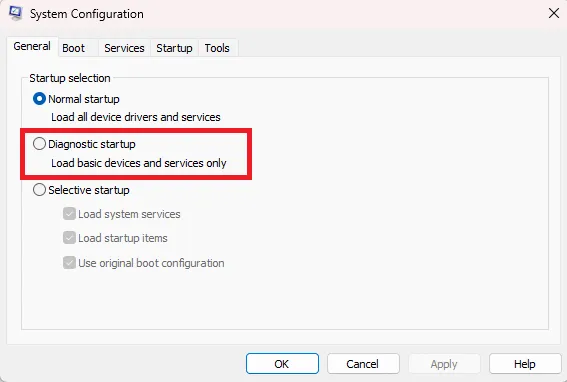
Then switch to “Selective startup” and uncheck “Load startup items”.

Finally, go to the “Services” tab, check “Hide all Microsoft services,” and then click “Disable all” to turn off non-Microsoft services.

From here, you can restart and test your system. If it’s stable, gradually reenable the services to weed out the one that’s causing problems.
WARNING: Always create a system restore point before making changes as MSConfig changes remain until manually reversed.
4. Windows Startup folder: Great for controlling different startup behavior for different users
The Windows Startup folder is a legacy feature that still works as a manual way to control which apps launch automatically when a user logs in. To use it:
- Press Win + R
- Type “shell:startup“
- Hit Enter

This opens the user-specific Startup folder. For system-wide startup changes, the command “shell: common startup” opens the shared folder for all users.

From here, all you need to do is move the shortcut for an application into this startup folder, and it’ll launch when you boot up your PC.
For example, if you want OneNote to open every time the system boots, just move its shortcut into this folder. Removing the shortcut stops it from launching.

» Still got problems? Try a PC diagnostics report in Windows
5. Registry Editor: More complex but offers higher functionality
The Registry Editor provides direct access to startup entries that Windows loads during login. It’s like a massive database that stores configuration settings for your operating system and programs.
The registry method gives you direct access to Windows’ startup database. Some programs add themselves here instead of using the startup folder, and some malware hides startup entries in obscure registry locations that don’t show up in Task Manager.
To open Registry Editor:
- Press Win + R to open Run dialog
- Type “regedit” and press Enter
- Click “Yes” when User Account Control prompts you

There are two main registry keys where startup programs are stored.
For current user only:
- Navigate to: HKEY_CURRENT_USER\Software\Microsoft\Windows\CurrentVersion\Run
- In the left panel, click through each folder: HKEY_CURRENT_USER > Software > Microsoft > Windows > CurrentVersion > Run

The right panel shows programs that launch when THIS user logs in.
For all users (system-wide):
- Navigate to: HKEY_LOCAL_MACHINE\Software\Microsoft\Windows\CurrentVersion\Run
- In the left panel, click through each folder: HKEY_LOCAL_MACHINE > Software > Microsoft > Windows > CurrentVersion > Run

Programs here launch for EVERY user who logs into this computer
To add a program, create a new String Value with the application path:
1. Right-click in the empty space of the right panel
2. Select New > String Value

3. Name it something descriptive (like “MyBackupTool”)
4. Double-click the new entry
5. In “Value data,” enter the full path to the program (like C:\Program Files\MyApp\myapp.exe)

6. To remove one, just delete the entry
WARNING: Editing the registry incorrectly can cause system instability or startup failures. Always export a backup of the keys before changes and use safer tools (Task Manager or Atera’s centralized RMM dashboard) when possible.
» Here’s how to use Atera’s in-app registry editor functionality remotely
6. Group Policy: Great for centralized management that users can’t change
Group Policy (GPO) provides a centralized tool for IT administrators to control which applications launch at startup across an organization’s devices. To use it, you’ll need the Windows Pro, Enterprise, or Education editions, administrative privileges, and an Active Directory domain environment (for centralized deployment).
This method offers centralized management across entire domains, policies that automatically reapply if users try to change them, an inheritance structure that allows different policies for different organizational units, and built-in reporting and compliance monitoring.
» Make sure you know the difference between Active Directory vs Azure AD
- Press Win + R and type gpedit.msc (for local policy) or gpmc.msc (for domain management)
- Click “Yes” when prompted by User Account Control

In Group Policy, go to User Configuration > Administrative Templates > System > Logon on a Windows Server to manage startup behavior. Here, you’ll find policies like “Run these programs at user logon”, “Do not process the run once list”, and “Do not process the legacy run list”.

To add startup programs via Group Policy:
- Double-click “Run these programs at user logon“
- Select “Enabled“
- Click “Show” next to the options
- Enter the full path to the program executable
- Repeat for additional programs
- Click OK to apply

For organizations already using Group Policy, platforms like Atera offer seamless integration for agent deployment across Windows infrastructure. Once the RMM agent is deployed, IT teams gain continuous monitoring of endpoint health, patch compliance, and system configurations. Atera’s RMM platform provides real-time alerts when systems deviate from expected configurations, while automated scripts can remediate common issues without manual intervention.
» Learn more about group policy management with Atera
Simplify startup management with centralized monitoring
If a program continues launching after its registry entry is deleted, it may be hiding in other startup mechanisms within Windows and thorough checks across these areas are essential to ensure complete removal. Common locations include:
- Startup Folder (shell: startup): Apps placed here run when the user logs in even if disabled elsewhere.
- Task Scheduler: Programs can be set to launch at logon, startup, or specific triggers.
- Services.msc: Some apps install themselves as Windows services, running independently of user login.
- Group Policy: In enterprise environments, administrators may enforce startup items.
- Scheduled Updates or Third-Party Tools: Security or utility software often re-adds itself automatically.
While tools like Task Manager provide quick wins for basic optimization, comprehensive management across enterprise environments demands more sophisticated approaches through Group Policy or centralized monitoring platforms. The key lies in systematic evaluation rather than aggressive disabling: critical system processes must remain untouched while user-level applications can be optimized based on organizational needs.
For IT teams managing multiple endpoints, individual device optimization quickly becomes unsustainable. Centralized RMM platforms like Atera provide significant value by extending traditional startup management capabilities across entire networks through real-time monitoring and automated remediation.
» Interested? Start a free trial with Atera
Related Articles

What is IT Management
IT downtime costs thousands of dollars per minute, yet most companies don't realize they have a management problem until systems fail. Without structured IT management, you face productivity hemorrhage, security breaches from unpatched vulnerabilities, and technical debt that consumes IT budgets. Technology should be a business enabler, not a constant crisis.
Read now
What is infrastructure monitoring?
The difference between proactive IT and midnight firefighting comes down to visibility: seeing CPU saturation before it crashes services, catching disk failures before they lose data, and detecting anomalies hours before they become disasters. Effective infrastructure monitoring is the path that gets you there.
Read now
CapEx vs. OpEx
Misclassifying IT spending as CapEx or OpEx inflates profits short-term but distorts financial reporting, tax liability, and strategic decisions. Bad enough, this could be extremely costly and time-consuming to fix. Getting it right determines whether your IT investments align with cash flow, growth trajectory, and compliance requirements.
Read now
How to restart a remote computer using Windows
Remote Windows restarts fail when network connectivity drops, permissions aren't configured correctly, or firewall rules block critical services. This guide covers every method (from Command Prompt and PowerShell to enterprise tools like Intune and SCCM) plus backup strategies for when systems freeze or disconnect from the domain.
Read nowEndless IT possibilities
Boost your productivity with Atera’s intuitive, centralized all-in-one platform













