
Generate summary with AI

Windows 10 support is over, which means no automatic updates unless you’re on Windows 11. Microsoft still issues and validates Windows 10 product keys, especially for OEM and retail licenses, but most new sales are transitioning to Windows 11. This is because the lack of support means increased security risks like unpatched vulnerabilities, malware, and compliance risks.
In enterprise environments, one of those compliance risks comes from poor documentation of product keys, potentially leading to severe compliance violations, financial penalties, and operational downtime during audits. Without accurate tracking, organizations risk duplicate activations, expired licenses, or unlicensed software running in production systems. Up to 60% of compliance failures start with poor documentation, including Windows product licenses.
So here’s how you can retrieve those Windows 10 product keys that you might be missing.
Methods to retrieve your Windows 10 product key
Before you jump straight in to finding your Windows 10 product key, you need to make sure you’re looking for the right thing (a digital license, product key, or volume activation).
Here’s how you can check:
- Open Command Prompt or PowerShell as an administrator
- Run this command: <slmgr /dli>
- Press Enter

If the window shows “Retail” or “OEM”, your system uses a standard product key or digital license. If it shows “MAK” (Multiple Activation Key) or “KMS”, your system uses volume licensing (enterprise).

The main differences between OEM, retail, and volume (MAK/KMS) product keys lie in ownership, flexibility, and compliance management:
- OEM keys are preinstalled by manufacturers and tied to the hardware’s motherboard, making them non-transferable. Once activated, they cannot be reused after replacing the motherboard.
- Retail keys, purchased directly from Microsoft or authorized resellers, are transferable between devices as long as only one is active at a time. Ideal for small businesses or individual users.
- Volume licenses (MAK/KMS) are designed for enterprises, allowing activation of multiple systems under one key. These require centralized monitoring to ensure compliance.
Now that you’ve confirmed you’re looking for the right thing, try these different methods for finding your Windows 10 product key:
Using PowerShell commands
PowerShell is the most versatile tool for retrieving Windows 10 product keys because it can access multiple storage locations, including your system’s BIOS/UEFI firmware, the Windows registry, and Microsoft’s licensing service. The command you use depends on where your key is stored, which varies by license type.
Windows keeps activation data in the following locations:
- BIOS/UEFI firmware: OEM licenses (pre-installed Windows) are embedded in your motherboard.
- Windows registry: Stores encrypted traces of manually-entered retail keys.
- Licensing service: Manages activation status and partial key information.
- Digital entitlement: No key stored anywhere; activation tied to hardware ID and Microsoft account.
PowerShell can query all these locations, but you’ll get different results depending on your license type.
» Did you know you can paste in PowerShell and run PowerShell commands on a remote computer?
For OEM licenses (embedded in the BIOS/UEFI firmware
Most computers purchased with Windows pre-installed have their product key embedded directly in the motherboard firmware. This applies to systems from Dell, HP, Lenovo, ASUS, and other major manufacturers following Microsoft’s OA3 (OEM Activation 3.0) standard.
Follow these steps:
1. Open PowerShell as Administrator by pressing Windows key + X and selecting Windows PowerShell (Admin) or Terminal (Admin)
2. Enter the command: <(Get-WmiObject -query ‘select * from SoftwareLicensingService’).OA3xOriginalProductKey>

3. Record the results
If a 25-character key appears (format: XXXXX-XXXXX-XXXXX-XXXXX-XXXXX), that’s your embedded key. If nothing appears, your system either uses a retail/volume license or is an older system/custom-built PC without firmware-embedded keys.
» Don’t miss our guides to updating your BIOS and finding your Windows PC serial number
For retail keys (from the Windows registry)
Retail licenses (purchased separately from Microsoft or authorized resellers) are stored in the Windows registry as encrypted data. For security reasons, Windows won’t display the full key, but you can retrieve partial information for verification.
Follow these steps:
1. Open PowerShell as Administrator
2. Check your Windows edition and installation details with this command: <Get-ItemProperty -Path “HKLM:\SOFTWARE\Microsoft\Windows NT\CurrentVersion” | Select-Object ProductName, EditionID, InstallDate>

This confirms your Windows edition, useful context before retrieving key information.
3. For the actual product key, use this command: <(Get-WmiObject -query ‘select * from SoftwareLicensingProduct’).PartialProductKey>
4. Interpret the results
You’ll see the last five characters of your currently active product key. This is useful for verifying which key is activated, but won’t give you the complete key needed for reinstallation.
For the full retail key (if needed), the registry stores the key in encrypted form. To decrypt it, you’ll need:
- Your original purchase email or product packaging
- Your Microsoft account (if the purchase was digital)
- A trusted third-party key finder tool
Important limitation: Retail and OEM keys may appear with these commands, but volume licenses (MAK/KMS) often show generic placeholders or nothing at all due to centralized activation policies.
» Here are the top registry editor challenges & solutions
For volume licenses (MAK/KMS)
Volume licensing is designed for centralized management and compliance tracking. Individual devices authenticate against organizational servers rather than storing unique keys, which improves security and simplifies license management at scale.
Enterprise environments using volume licensing require different approaches because activation is managed centrally rather than stored on individual devices.
For MAK (Multiple Activation Key) environments:
- Individual product keys are managed through the Volume Licensing Service Center (VLSC)
- The standard PowerShell commands may return generic placeholders like XXXXX-XXXXX-XXXXX-XXXXX-3V66T
- IT administrators should use the Volume Activation Management Tool (VAMT) to retrieve and manage MAK keys centrally
For KMS (Key Management Service) environments:
- Devices don’t store individual keys; they authenticate against a central KMS server
- Key retrieval isn’t necessary; activation is automatic when connected to the corporate network
- If you need licensing details, contact your IT administrator for VAMT access
Through Microsoft accounts and enterprise portals
Product keys can often be recovered from cloud-based storage rather than the device itself. The retrieval location depends on how Windows 10 was purchased.
OEM keys are tied to the device’s BIOS/UEFI and are not visible in Microsoft accounts. They must be retrieved directly from the device. Retail purchases should appear in the user’s Microsoft account.
For personal Microsoft accounts, follow these steps:
- Sign in to your Microsoft account at account.microsoft.com
- Navigate to Subscriptions
- Find your full product key displayed for retail digital purchases made through Microsoft
For enterprise environments, there are a few differences:
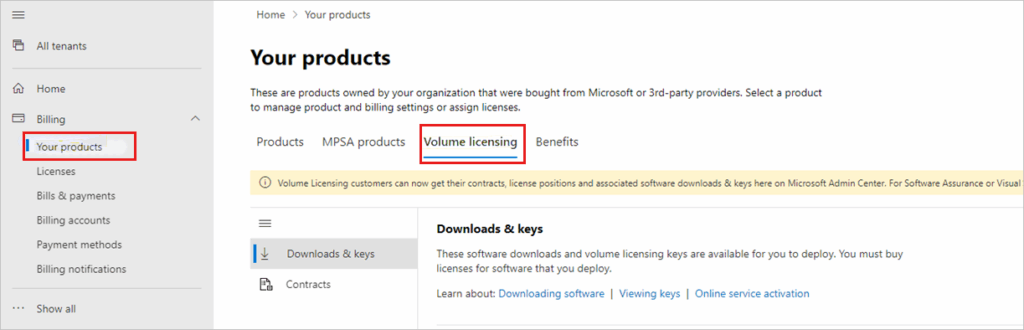
- IT administrators access keys via the VLSC portal
- Displays keys linked to MAK or KMS activations
- Used by organizations with volume licensing agreements
What if you can’t find your Windows 10 product key?
If none of the retrieval methods return a product key, don’t panic; there are several legitimate reasons why a key might not appear, and in many cases, you don’t actually need one.
Here’s why they might not show up:
Digital licenses don’t always have a key
The most common reason you can’t find a product key is that your system uses a digital license instead of a traditional product key.
Check your activation status by going to Settings > System > Activation
If you see “Activated with a digital license” or “Activated with a digital license linked to your Microsoft account,” your system doesn’t use a traditional product key.
This means your activation is tied to your hardware ID and/or Microsoft account and no 25-character product key exists anywhere to retrieve. If you need to reinstall Windows on the same hardware, simply sign in with your Microsoft account; no key entry required
Volume licenses don’t store keys on individual devices
If you’re in an enterprise IT environment using KMS (Key Management Service), individual devices don’t store product keys. Activation happens automatically when connected to the corporate network and devices authenticate against a central KMS server instead.
To verify:
- Run slmgr /dli in PowerShell as Administrator
- If it shows “KMS,” your system uses centralized activation
- Contact your IT administrator if you need to verify a key
Enterprise editions mask keys
Enterprise editions often mask or omit keys for compliance and security reasons. PowerShell commands may return nothing or show generic placeholders, even though the system is properly activated.
Centralized visibility beats manual key hunting every time
Finding a Windows 10 product key doesn’t have to be a manual, device-by-device process; especially when managing multiple endpoints across an organization. While PowerShell commands and by-device hunting work for individual systems, enterprises need centralized visibility and automated compliance tracking to avoid audit failures, licensing mismatches, and the operational delays that come from poor documentation.
While these methods help you find product keys if they exist, you shouldn’t rely on them all the time. To mitigate these risks, you should maintain a centralized license inventory that doesn’t rely on manual reporting approaches lacking the proactive validation necessary for large-scale enterprise compliance management.
Atera’s all-in-one RMM platform simplifies license tracking across managed endpoints. IT teams can deploy PowerShell commands and essential scripts remotely across their entire fleet, collecting license information from hundreds or thousands of devices simultaneously through Atera’s remote scripting capabilities. Combined with comprehensive IT asset discovery scanning and activity logs, Atera provides the centralized visibility needed to maintain compliance documentation.
» Ready to take control of your IT infrastructure? Start a free trial with Atera
Related Articles

What is IT Management
IT downtime costs thousands of dollars per minute, yet most companies don't realize they have a management problem until systems fail. Without structured IT management, you face productivity hemorrhage, security breaches from unpatched vulnerabilities, and technical debt that consumes IT budgets. Technology should be a business enabler, not a constant crisis.
Read now
What is infrastructure monitoring?
The difference between proactive IT and midnight firefighting comes down to visibility: seeing CPU saturation before it crashes services, catching disk failures before they lose data, and detecting anomalies hours before they become disasters. Effective infrastructure monitoring is the path that gets you there.
Read now
CapEx vs. OpEx
Misclassifying IT spending as CapEx or OpEx inflates profits short-term but distorts financial reporting, tax liability, and strategic decisions. Bad enough, this could be extremely costly and time-consuming to fix. Getting it right determines whether your IT investments align with cash flow, growth trajectory, and compliance requirements.
Read now
How to restart a remote computer using Windows
Remote Windows restarts fail when network connectivity drops, permissions aren't configured correctly, or firewall rules block critical services. This guide covers every method (from Command Prompt and PowerShell to enterprise tools like Intune and SCCM) plus backup strategies for when systems freeze or disconnect from the domain.
Read nowEndless IT possibilities
Boost your productivity with Atera’s intuitive, centralized all-in-one platform













