
Generate summary with AI

It’s 2 PM on a Tuesday and your manager’s laptop just forced a restart in the middle of a board presentation. Now the meeting is on hold while everyone waits awkwardly for the update to finish.
For IT professionals, Windows updates represent a constant balancing act. On one hand, updates deliver critical security patches and feature improvements. On the other, they bring unexpected reboots, compatibility and other IT issues, and bandwidth consumption that can disrupt business operations at the worst possible moments.
Understanding how to control, defer, or selectively disable Windows updates isn’t about avoiding patches entirely but taking back control of your IT environment. In this guide, you’ll learn every method available, from simple Group Policy changes to enterprise-scale management solutions.
» Disabled updates accidentally? Here’s how to manually re-enable Windows automatic updates
Which Windows update types and policies can be disabled?
Not all Windows updates are created equal. Before you start disabling anything, you need to understand what you’re working with and what Microsoft actually lets you control. Windows pushes several different types of updates through its servers, and some of them you can’t mess with:
Mandatory updates (can’t be disabled)
- Security patches address critical vulnerabilities and are considered mandatory across all Windows editions
- Windows Defender definition updates keep antivirus protection current
- Servicing Stack Updates (SSUs) ensure future updates install correctly
» Don’t miss our guide to autonomous vulnerability management
Optional updates (can be selectively disabled):
- Feature updates introduce new Windows functionality and UI changes
- Driver updates are software packages that help Windows communicate with hardware devices
- Microsoft product updates apply to other Microsoft software installed on your system, like Office or Edge
“I prefer to allow mandatory updates and choose which of the optional updates to install. This is to make sure that wrong updates are not downloaded for specific endpoints. ”
Odinkemere Ukomadu
» Here are our picks for the best driver updater software options
How update policies differ by Windows edition
Your ability to control updates depends heavily on which Windows edition you’re running, and the differences are significant.
Windows Home: Minimal control
Home edition delivers and installs updates automatically with no enforcement controls beyond pausing. You can pause updates for up to 7 days but can’t set deferral periods for feature or quality updates. There’s no Group Policy or MDM-based controls available. Your customization is limited to Active Hours and Pause options in Settings.
This makes Windows Home particularly challenging for business environments. If you’re running a small business on Home editions, your update control options are essentially limited to registry hacks and service manipulation, both of which are risky and can lead to higher CPU utilization, longer startup and shutdown times, poor application functionality or random crashes or hangs according to Microsoft.
Windows Pro: Business-focused flexibility
Pro edition provides Windows Update for Business controls via Settings and Group Policy. Feature updates can be deferred up to 365 days, while quality updates can be deferred up to 30 days. Updates can be paused for up to 35 days, and Active Hours can be configured to suppress restarts.
Pro also supports Delivery Optimization settings, allowing peer-to-peer update sharing across devices. This significantly reduces bandwidth consumption in multi-device environments.
Windows Enterprise: Full administrative control
Enterprise offers the complete Windows Update for Business policy set plus deep integration with WSUS, Configuration Manager, or Intune. Feature update deferrals extend up to 730 days, with quality updates deferrable up to 30 days. This edition supports deployment rings, phased rollouts, and approval workflows via Group Policy or MDM.
The game-changer for Enterprise is the Long-Term Servicing Channel (LTSC). LTSC allows devices to receive only security fixes for up to 10 years, perfect for specialized systems running mission-critical applications that can’t tolerate feature changes, such as manufacturing control systems running automated assembly lines or medical imaging devices validated by regulatory bodies.
Windows Server: Maximum manual control
Servers are typically managed through WSUS or Configuration Manager rather than direct Windows Update. Group Policy settings can disable automatic installation and prevent unscheduled reboots. Servers generally receive only quality updates on LTSC releases, with feature updates following the LTSC cadence.
Server administrators can schedule maintenance windows to control exactly when patches are applied and servers reboot. This level of control is essential for maintaining uptime SLAs.
» Here’s everything you need to know about Windows Activity History
5 easiest methods for disabling Windows updates
Warning: Disabling updates is risky and can lead to some significant problems.
In the short term, disabling updates eliminates those annoying surprise reboots after Windows Update installs patches. For older systems, disabling Windows updates can actually improve performance by preventing resource-intensive update processes from running in the background.
The long-term picture is more concerning:
- Missing security patches leaves PCs vulnerable to exploits and malware. Around 32% of ransomware attacks are linked to unpatched vulnerabilities.
- Reliability fixes and feature improvements enhance system stability over time, and losing them might mean your system becomes unstable and unreliable.
- Outdated drivers can degrade hardware efficiency or cause complete device failures. While blocking bad driver updates might solve an immediate problem, systematically avoiding all driver updates creates new ones down the road.
If you still wish to disable Windows updates, here are the easiest ways to do so:
1. Using Group Policy Editor (Windows Pro, Enterprise, and Server)
Group Policy Editor provides the most reliable, officially supported method to control Windows updates on Pro, Enterprise, and Server editions since you’re using Microsoft’s own administrative tools rather than registry hacks or service manipulation. It’s particularly effective for IT professionals managing business environments where update timing needs to align with maintenance windows and change management protocols.
Group Policy changes persist better through updates and are less likely to be reversed by Windows.
Follow these steps:
1. Press Win + R, type gpedit.msc, and press Enter to open Local Group Policy Editor

2. Navigate through the tree: Computer Configuration > Administrative Templates > Windows Components > Windows Update
3. Double-click Configure Automatic Updates

4. Select Disabled
5. Click Apply, then OK

Major Windows feature upgrades or cumulative updates sometimes reset policies to defaults. For durable control, pair Group Policy settings with supported infrastructure like WSUS or Intune, or use complementary measures such as registry locks and scheduled task suppression to reduce the chance of policy rollback.
Edition-specific differences include:
- Windows Pro: Includes the Local Group Policy Editor with core policy categories, security settings, administrative templates, Windows Update controls, BitLocker (where licensed), firewall rules, and basic user restrictions. However, Pro can’t enforce Enterprise-only policies even though many appear in the editor.
- Windows Enterprise: Builds on Pro with additional policy families for advanced security and deployment control, such as AppLocker rule enforcement for application whitelisting, BranchCache for distributed content caching, Credential Guard and Device Guard for virtualization-based security, and tighter control over Microsoft Store, Spotlight, and telemetry management.
- Windows Server: Inherits all Enterprise policies and adds server-role templates. It supports Group Policy Preferences for granular registry, file, and service management, plus fine-grained delegation and loopback processing for mixed desktop/server environments.
- Windows Home: Doesn’t include gpedit.msc. Key policy settings can only be applied by directly editing registry keys or deploying essential scripts.
» Learn more about group policy management with Atera
2. Editing the registry (All Windows editions including Home)
Registry editing is the most universal method available because it works across all Windows editions, including Home, making it a great choice for home users or small businesses who don’t have access to Group Policy Editor.
The registry approach also gives you granular control over specific update behaviors. You can configure exactly how Windows handles updates, such as whether it notifies you before downloading, downloads but asks before installing, or operates on a specific schedule.
Before modifying the registry, be sure to create a backup as incorrect changes can break your system and these safety measures let you roll back if something goes wrong. Here’s how:
1. Press Windows + S
2. Type “Registry Editor“

3. Go to File > Export

4. Choose “All” under Export Range and save the file

Create a System Restore Point:

1. Press Windows + S
2. Search “Create a restore point” in Start
3. Use the System Protection tab to create a restore point

Then, back in Registry Editor, the primary registry location for Windows Update control is:
HKEY_LOCAL_MACHINE\SOFTWARE\Policies\Microsoft\Windows\WindowsUpdate\AU
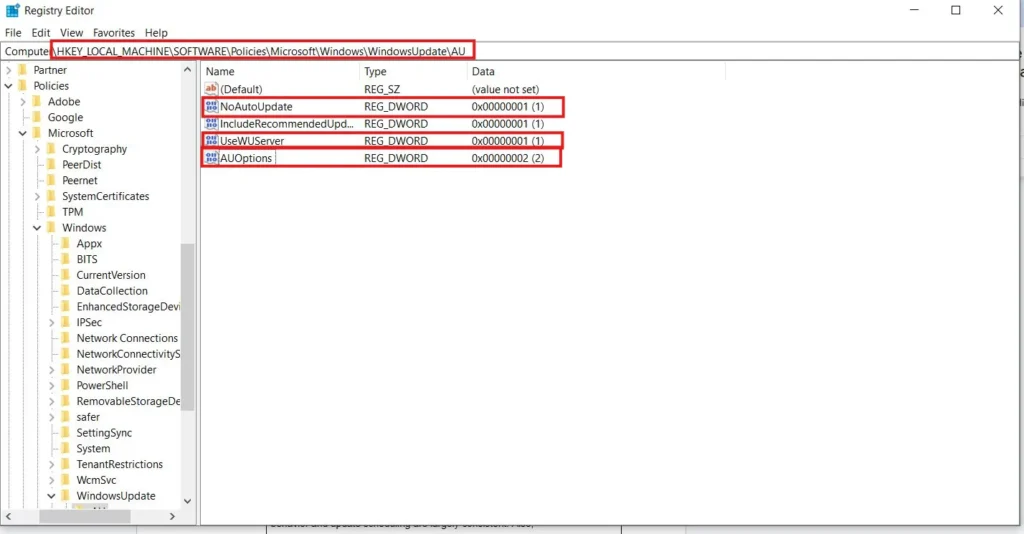
Two key values control update behavior:
NoAutoUpdate: Set to 1 to disable updates, or 0 to enable updates.
AUOptions: Controls the update notification and installation behavior:
- 2 = Notify before download
- 3 = Auto download, notify for install
- 4 = Auto download and schedule install
- 5 = Allow local admin to choose setting
» Have an issue? Don’t miss these registry editor challenges & solutions
3. Stopping and disabling Windows Update services
Disabling the Windows Update service and related components offers a more aggressive approach when Group Policy or registry methods aren’t sufficient. IT teams often use this method when dealing with systems that need absolute update control or when other methods have failed.
This approach works by preventing the underlying services that download and install updates from running at all. Without these services active, Windows simply can’t check for or apply updates.
The 1st way to do this is with the Services Manager:
1. Press Win + R, type services.msc, and hit Enter

2. Locate Windows Update (wuauserv) in the list
3. Right-click > Properties

4. Set Startup type to Disabled
5. Click Stop, then Apply and OK

6. Repeat for Background Intelligent Transfer Service (BITS) and Windows Update Medic Service (WaaSMedicSvc)
The 2nd way is through Command Prompt:
1. Press Win + S
2. Type “Command Prompt“
3. Click “Run as Administrator“

Run these commands to stop the services:
- net stop wuauserv (Stops Windows Update service)
- net stop bits (Stops Background Intelligent Transfer Service)
- net stop dosvc (Stops Delivery Optimization service)

If you want, you can disable them permanently with these commands:
- sc config wuauserv start= disabled
- sc config bits start= disabled
- sc config dosvc start= disabled
Verify the status by running:
- sc query wuauserv
- sc query bits
- sc query dosvc

The specifics about this method vary a little across Windows versions, and some important considerations are needed:
- Windows 10 Enterprise/Education/LTSC (1903+): Updates depend on Windows Update Medic Service (WaaSMedicSvc), which is protected via service hardening and cannot be disabled with a simple <sc config … disable> command. This service actively monitors for tampering and will recreate or re-enable disabled services.
- Windows 11 (all editions): Depends on WaaSMedicSvc plus new scheduler triggers called “Reboot_AC” and “Reboot_BAT” tasks. These tasks live under “UpdateOrchestrator” and can override manual disablement, essentially undoing your service disable commands automatically.
To make this method work effectively across newer Windows versions, your scripting must:
- Stop wuauserv, bits, dosvc, cryptsvc, and WaaSMedicSvc
- Disable UpdateOrchestrator tasks
- Lock down recovery mechanisms via registry or by renaming Medic folders
Without these additional steps, Windows will simply restore the services you disabled.
» Work an the enterprise level? See our guide to EITM and discover the best enterprise AI platforms for IT management
4. Block update servers at the network level
Network-level blocking takes a completely different approach. Instead of disabling local services, you prevent Windows clients from reaching Microsoft’s update infrastructure entirely. This method is particularly effective in controlled environments where you manage network infrastructure and want a centralized blocking mechanism that affects all devices without touching individual machines.
The advantage here is that even if Windows services are running and trying to check for updates, they simply can’t reach the update servers. It’s like cutting the phone line rather than unplugging the phone.
Follow these steps:
1. Click Start, type “Notepad“, then click “Run as administrator“

2. Approve the UAC prompt
3. From Notepad, click File > Open

4. Navigate to C:\Windows\System32\drivers\etc
5. Change the file filter from “Text Documents (*.txt)” to “All Files“
6. Open the file named “hosts“
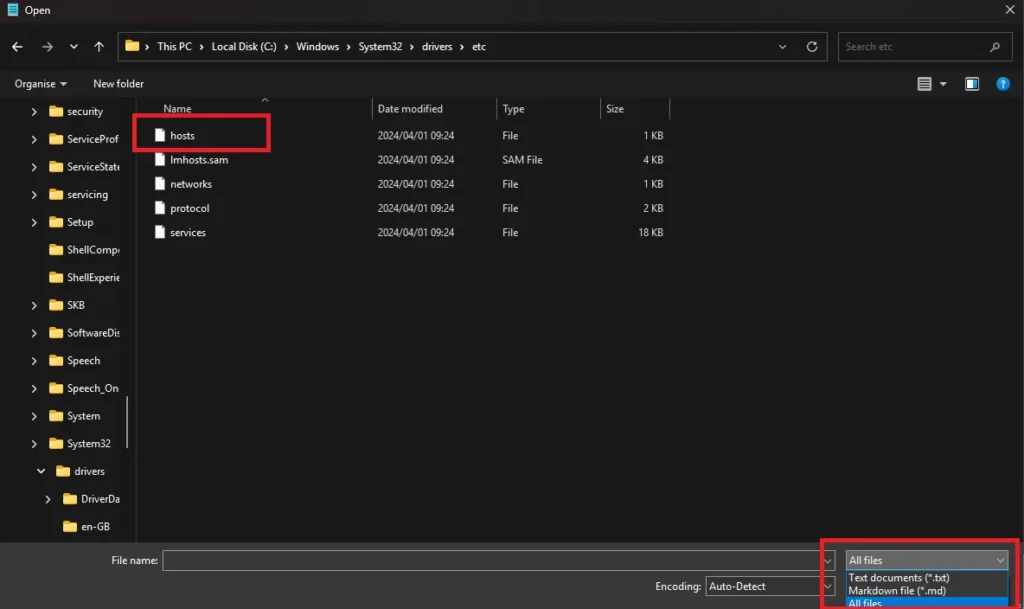
At the bottom of the file, add these lines mapping each update hostname to 127.0.0.1:
- 127.0.0.1 update.microsoft.com
- 127.0.0.1 windowsupdate.microsoft.com
- 127.0.0.1 download.windowsupdate.com
- 127.0.0.1 ntservicepack.microsoft.com
- 127.0.0.1 msupdate.microsoft.com
- 127.0.0.1 stats.microsoft.com
- 127.0.0.1 wustat.windows.com

Then Select File > Save, and close Notepad. You can then enforce the changes immediately by opening Command Prompt as an administrator and entering the following command: <ipconfig /flushdns>.

You can verify it’s working by opening a browser and navigating to one of the blocked domains, such as http://windowsupdate.microsoft.com. You should see a browser error or blank page.
For Windows 10 (pre-1903) and later, Microsoft introduced Delivery Optimization (DO) and added Windows Update Medic Service (WaaSMedicSvc), which can re-enable update services and repair broken configurations.
In addition to blocking the legacy domains listed above, your blocking configuration must also account for these domains:
- do.dsp.mp.microsoft.com
- dl.delivery.mp.microsoft.com
- v10.events.data.microsoft.com
- settings-win.data.microsoft.com
- sls.update.microsoft.com
- fe3.delivery.mp.microsoft.com
» Troubleshooting PC issues? Here’s how you can run a PC diagnostics report in Windows
5. Using PowerShell scripts for automated control
PowerShell scripts offer a powerful middle ground between manual service manipulation and full enterprise management tools. This approach is particularly valuable for IT professionals managing multiple endpoints who need a repeatable, auditable method to control updates without deploying full-blown management infrastructure.
The real advantage of PowerShell scripts is flexibility and reversibility. A well-written script can disable updates comprehensively across services, registry, and scheduled tasks, then re-enable everything just as cleanly when needed. For organizations using RMM platforms like Atera, PowerShell scripts can be deployed remotely across managed endpoints, providing centralized control without manual intervention on each machine.
Here’s a complete PowerShell script you can copy that stops services, renames binaries, and locks registry keys:
The Script:
Atera does not guarantee the integrity, availability, security, virus-free, safety, lawfulness, non-infringement, rights’ status, or functionality of the scripts. The use of the shared scripts is at your own risk. Scripts are provided “AS IS”. *
<# .SYNOPSIS Disable or re-enable Windows Update services and components. .PARAMETER Action Specify 'Disable' to block updates or 'Enable' to restore update functionality. .EXAMPLE .\Disable-Updates.ps1 -Action Disable .\Disable-Updates.ps1 -Action Enable #> Param( [Parameter(Mandatory=$true)] [ValidateSet('Disable','Enable')] [string]$Action ) # Services to manage $ServiceNames = 'wuauserv','bits','WaaSMedicSvc' # Binaries to disable/restore $BinaryMap = @{ 'C:\Windows\System32\usoclient.exe' = 'usoclient.exe.disabled' 'C:\Windows\System32\UsoClientUxBroker.exe'= 'UsoClientUxBroker.exe.disabled' 'C:\Windows\System32\WaaSMedicAgent.exe' = 'WaaSMedicAgent.exe.disabled' } # Registry paths for ACL lockdown $RegPaths = @( 'HKLM:\SYSTEM\CurrentControlSet\Services\wuauserv', 'HKLM:\SYSTEM\CurrentControlSet\Services\bits', 'HKLM:\SYSTEM\CurrentControlSet\Services\WaaSMedicSvc' ) function Disable-Updates { Write-Host 'Disabling Windows Update services...' -ForegroundColor Yellow # Stop and disable services foreach ($svc in $ServiceNames) { if (Get-Service $svc -ErrorAction SilentlyContinue) { Stop-Service $svc -Force -ErrorAction SilentlyContinue Set-Service $svc -StartupType Disabled Write-Host " • Stopped and disabled $svc" } } # Rename update binaries foreach ($src in $BinaryMap.Keys) { $dst = Join-Path (Split-Path $src) $BinaryMap[$src] if (Test-Path $src) { Rename-Item -Path $src -NewName $dst -ErrorAction SilentlyContinue Write-Host " • Renamed $(Split-Path $src -Leaf) → $(Split-Path $dst -Leaf)" } } # Lock registry keys foreach ($key in $RegPaths) { if (Test-Path $key) { icacls $key /deny 'SYSTEM:(W)' | Out-Null Write-Host " • Denied write access on $key" } } Write-Host 'Windows Update is fully disabled.' -ForegroundColor Green } function Enable-Updates { Write-Host 'Re-enabling Windows Update services...' -ForegroundColor Yellow # Restore registry ACLs foreach ($key in $RegPaths) { if (Test-Path $key) { icacls $key /remove:d 'SYSTEM' | Out-Null Write-Host " • Restored permissions on $key" } } # Restore binaries foreach ($src in $BinaryMap.Keys) { $disabled = Join-Path (Split-Path $src) $BinaryMap[$src] if (Test-Path $disabled) { Rename-Item -Path $disabled -NewName (Split-Path $src -Leaf) -ErrorAction SilentlyContinue Write-Host " • Restored $(Split-Path $src -Leaf)" } } # Start and set services to manual foreach ($svc in $ServiceNames) { if (Get-Service $svc -ErrorAction SilentlyContinue) { Set-Service $svc -StartupType Manual Start-Service $svc -ErrorAction SilentlyContinue Write-Host " • Started and set $svc to Manual" } } Write-Host 'Windows Update is re-enabled.' -ForegroundColor Green } if ($Action -eq 'Disable') { Disable-Updates } else { Enable-Updates }To use this script, copy and paste everything into a Notepad document and save it as “Disable-Updates.ps1” to a location you’ll remember, like Desktop or Documents. The “.ps1” extension is critical.

To run the script, follow these steps:
1. Open PowerShell as an admin

2. If you saved the script to your Desktop, type: cd Desktop and press Enter
3. If you saved it to Documents, type: <cd>, followed by your Documents path, and press Enter

4. To disable updates, type: .\Disable-Updates.ps1 -Action Disable and press Enter

5. To re-enable updates later, type: .\Disable-Updates.ps1 -Action Enable and press Enter

» Learn more: How to run PowerShell commands on a remote computer
Take control of Windows updates
Managing Windows updates requires balancing security with operational control. The methods in this guide each offer different levels of control depending on your Windows edition and technical requirements, but remember that disabling updates entirely increases security risk.
For organizations managing updates across multiple endpoints, manual methods quickly become unsustainable. Windows Update Medic Service reverses manual changes, feature upgrades reset configurations, and keeping dozens or hundreds of machines properly patched requires constant hands-on intervention.
Atera’s all-in-one RMM platform transforms patch management from reactive firefighting into proactive strategy. Automated patch deployment lets you schedule updates during maintenance windows, test on specific device groups before wider rollout, and ensure critical security patches deploy without manual intervention. If you need a better PowerShell script to handle updates, generate a custom script with AI Copilot from natural language queries.
» Want to try it out? Start a free trial with Atera
Related Articles

What is IT Management
IT downtime costs thousands of dollars per minute, yet most companies don't realize they have a management problem until systems fail. Without structured IT management, you face productivity hemorrhage, security breaches from unpatched vulnerabilities, and technical debt that consumes IT budgets. Technology should be a business enabler, not a constant crisis.
Read now
What is infrastructure monitoring?
The difference between proactive IT and midnight firefighting comes down to visibility: seeing CPU saturation before it crashes services, catching disk failures before they lose data, and detecting anomalies hours before they become disasters. Effective infrastructure monitoring is the path that gets you there.
Read now
CapEx vs. OpEx
Misclassifying IT spending as CapEx or OpEx inflates profits short-term but distorts financial reporting, tax liability, and strategic decisions. Bad enough, this could be extremely costly and time-consuming to fix. Getting it right determines whether your IT investments align with cash flow, growth trajectory, and compliance requirements.
Read now
How to restart a remote computer using Windows
Remote Windows restarts fail when network connectivity drops, permissions aren't configured correctly, or firewall rules block critical services. This guide covers every method (from Command Prompt and PowerShell to enterprise tools like Intune and SCCM) plus backup strategies for when systems freeze or disconnect from the domain.
Read nowEndless IT possibilities
Boost your productivity with Atera’s intuitive, centralized all-in-one platform













