
Table of contents
Generate summary with AI

Looking to remotely control one PC from your own? Atera breaks it down with a guide to the best options for remote access.
When you’re managing an IT environment, you’ll often need to be able to access other computers. Remote management is most often useful to make changes and updates, troubleshoot issues, or even monitor behavior. Today, we’re going to go over three of the best methods for making that happen and walk you through how to get the most out of each solution.
1. Windows Remote Desktop Connection
One of the easiest ways to control a PC from another PC—especially if both are on the same network—is by using Remote Desktop Connection (RDC), the free built-in feature that’s included with Microsoft Windows OS. It comes built into Windows Pro and Enterprise editions, and takes just a few minutes to set up.
For security purposes, it’s automatically disabled as standard, but it takes just minutes to turn it on, and it might be enough to do the job you need.
Using RDC is really simple.
Step 1: Enable Remote Desktop on the target PC
Before you can connect from one PC to another PC, you’ll need to turn on Remote Desktop on the PC that you want to access remotely.
On the target PC, go to:
Start > Settings > System > Remote Desktop

Next, you’ll need to ensure that Remote Desktop is turned to On, and confirm when prompted.

Optional: Turn on Require devices to use Network Level Authentication for a more secure connection.
Note: Windows RDC only works on Windows Pro, Enterprise, or Education editions. If your PC is a Home edition, you’ll need to upgrade in order to use Windows RDC.
Step 2: Find your PC name
Next, on the same settings page, note the PC name — you’ll need this to make the remote connection later. It should be right below the Remote Desktop On/Off toggle. Here, the example PC name is “Example-123”.

Step 3: Establish the connection from your other PC
Now, switch over to the computer you want to use for remote access.
- Search for Remote Desktop Connection in the Windows search bar and open it.

- Enter the PC name that you found in Step 2 and click Connect.

- When prompted, enter your login details in order to initiate the connection.
Pros of Windows RDC
Windows Remote Desktop Connection runs on remote desktop protocol, making it very simple to use inside your own network. For in-office remote support, it’s a really great tool, and it won’t cost you a penny.
Cons of Windows RDC
If you’re looking to monitor and manage computers outside of your own office network, e.g. support multiple offices, client environments, or even home workers, using remote desktop connection will be more difficult. You’ll need to spend time configuring any remote network to support the remote access, and you’ll need information about the remote PC, which the user might not be tech-savvy enough to provide.
But maybe the bigger problem with remote desktop connection is that the functionality is limited. The user won’t be able to see what’s going on while the remote access session is taking place, and as the technician, you can’t run more than one concurrent session at the same time. Finally, Windows RDC doesn’t support automatic reboot and reconnect; there are additional manual steps involved.
As you can see, the simplicity of Windows RDC comes with limitations. If you need to access multiple machines, run background sessions, or connect to devices that are outside of your local network without firewall configuration headaches, you’ll need to use a more powerful remote desktop method. Leading us to our 2nd option…
2. Cloud-based RMM tool
For those who work in the IT world, or who are part of a team managing dozens or even hundreds of endpoints, a cloud-based Remote Monitoring and Management (RMM) tool like Atera is a total game-changer.
With Atera, you can have full monitoring and management access to any device in your network, 100% remotely. And you can manage everything from one easy-to-use dashboard. At Atera, we know that remote connection is a crucial aspect of remote IT support, which is why we’ve worked hard to ensure that you’ll never have any issues with remotely accessing any devices in your network.
But why use Atera?
Atera is an RMM software that is trusted by more than 13,000 teams around the globe, focused on helping IT professionals manage their IT network smarter and more efficiently. Aside from offering 4 different remote desktop integrations depending on your preferred software, our platform uses Agentic AI to make repetitive, mundane tasks a thing of the past for IT pros.
For example, after assisting an end user through a remote desktop connection, creating a follow-up support ticket can be time-consuming and frustrating. But with Atera’s AI Copilot, you won’t need to worry about rewatching the same remote connection replay over and over again to type out a report. Copilot will instantly summarize what happened throughout the entire remote connection, allowing you to pass on the necessary info quickly and easily.
Here are the remote desktop connection integrations that Atera supports:
Splashtop
Splashtop comes pre-integrated with Atera, giving you simple, high-performance remote access. With Splashtop & Atera, you can connect securely to other devices, access files and applications, and troubleshoot problems, no matter if the device is in the same room or across the world. Atera also natively integrates with Splashtop’s SOS remote support for emergency situations where a user is currently at their device, but this requires the premium license.
Splashtop is included with any Atera plan (though the Professional plan is limited to 2 concurrent sessions).
TeamViewer
As a leading remote desktop software, TeamViewer is another great option. You’ll be able to access unattended devices or toggle between a black screen and screen sharing for private remote access, depending on your needs. The software also includes file sharing, remote printing, and video conferencing with collaboration capabilities. To use TeamViewer with Atera, you’ll need a separate TeamViewer plan.
ScreenConnect
We also integrate with ScreenConnect, a popular remote desktop solution that was bought by ConnectWise. While ScreenConnect is a great choice for remote support, it does require a ScreenConnect license.
AnyDesk
AnyDesk is another popular remote desktop connection option that integrates natively with Atera. Once you’ve chosen AnyDesk as your default within Atera (included with all plans except for Professional), it will automatically install on all devices within your network. Then, once the technician has downloaded AnyDesk, remote access is just a matter of a simple authorization process to ensure security. No separate set-up or extra fees, just simple (yet powerful) remote access.
Bonus: automated patch management, IT support, and more
Choosing to use Atera isn’t only an investment in remote support capabilities, but full RMM capabilities. With automated patch management, IT support script generation, and much more, Atera offers what a standalone remote connection tool simply can’t.
3. Chrome Remote Desktop
For another quick and easy way to control a PC from another PC, you could use Chrome Remote Desktop. With next to no setup required, this free tool from Google runs entirely through the Chrome browser, meaning it works across platforms (Windows, Mac, Linux, or even mobile).
It works great for quick fixes or small-scale remote sessions where you only need to hop onto another machine for something quick and don’t want to go through any set up process. You’ll need someone to be near the PC that you’d like to access.
Let’s jump into how to set up Chrome Remote Desktop.
Step 1: Open Google Chrome on both computers (you’ll need to be signed into your Google account on each PC).
Step 2: Go to remotedesktop.google.com on the PC that you’d like to access remotely and click on Share my screen. If prompted to download the Chrome extension, download and install it.

Step 3: Once you’re ready to remotely access your PC, click on Generate code. Save this 12-digit code for the next step.

Step 4: Go to remotedesktop.google.com on the PC that you’d like to use to remotely access the first PC and enter the 12-digit code from Step 3 under Connect to another computer and click Connect.
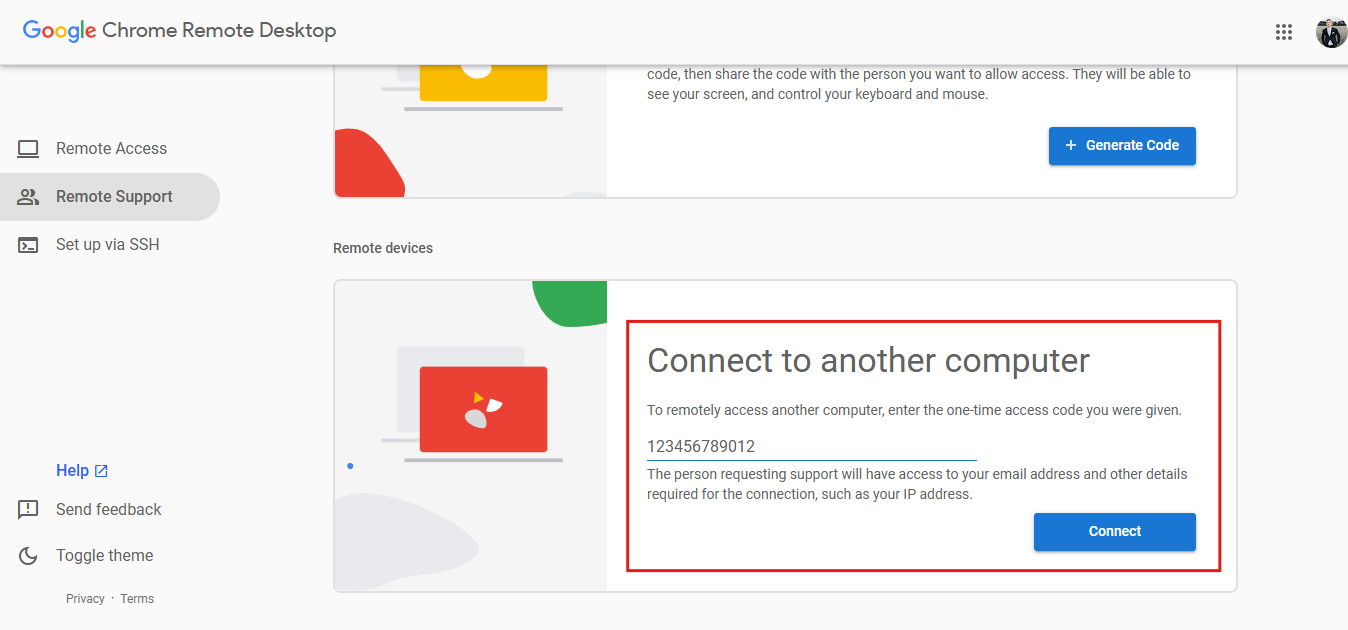
Step 5: On the target PC, confirm the connection request by clicking Share.
Once you’ve accepted the request, you should be able to remotely access the PC. Chrome Remote Desktop is a convenient method for a simple fix, and it doesn’t cost a dime. One downside is that it only works for attended access, so someone always needs to be on the target PC to provide the code and accept the request.
That’s why Chrome Remote Desktop is not a common remote desktop solution for IT pros.
Take your remote access to the next level with Atera
Efficient remote access is no longer a “nice-to-have” for IT professionals; it’s a non-negotiable. We hope that out of the 3 options that we’ve gone over today, you found one that will work for your needs.
While basic connection via Windows native Remote Desktop Connection or Chrome Remote Desktop is enough for some people, those with more complex needs will need something more heavy-duty. That’s why, whether you’re remotely troubleshooting, managing endpoints, or performing routine maintenance, using the right RMM solution can save hours of work for your IT team.
And Atera isn’t only more efficient for remote connection. In fact, Atera’s Robin can reduce IT workload by up to 40% by autonomously resolving support tickets before they ever reach an IT tech. This results in an average of 3 hours in saved time per day, per technician.

So if you’d like to learn more about Atera and how it can transform the way that you and your IT team do business, get started with a 30-day free trial today.
Related Articles

How to check if a disk is MBR or GPT in Windows
Choosing between MBR and GPT depends on your hardware and future storage needs, with GPT supporting larger drives and modern security features. You can check your disk’s partition style in seconds using Disk Management, Command Prompt, or PowerShell.
Read now
How to enable or disable the Action Center in Windows 10 and 11
The Action Center centralizes system alerts and quick toggles, but it requires specific background services and shell integrations to function correctly. While hiding the interface stops visual distractions, notifications still process in the background, making proactive management necessary for security.
Read now
How to change file associations in Windows 10 and 11
Windows file associations follow a priority system that decides which app opens your files, and problems usually happen when those links break or apps aren’t registered correctly. You can fix or change them using built-in tools, while automation platforms make large-scale management much easier.
Read now
How to fix the “vcruntime140.dll not found” error in Windows 11
The "vcruntime140.dll" error usually happens because of missing or corrupt Visual C++ Redistributables. To fix it safely, verify your system architecture and reinstall the official Microsoft packages for both x86 and x64.
Read nowEndless IT possibilities
Boost your productivity with Atera’s intuitive, centralized all-in-one platform













