
Generate summary with AI

You’re about to go to bed on Friday evening, but you’ve just realized you forgot to schedule an important, massive file download that needs to finish overnight. You don’t want your PC burning electricity until sunrise, or worse, staying on all weekend because you forgot to shut it down.
If you’re on Windows 11, there’s a really simple solution: shutdown timers. They’re simple to set up, whether you need a one-time countdown after a backup finishes or a recurring schedule that powers down your lab PCs every night at 10 PM. In fact, automatic sleep or shutdown schedules in offices with always-on machines are a great way to save energy costs.
Whether you’re automating your own workstation or rolling out fleet-wide shutdown schedules, here are the simplest ways to set shutdown timers in Windows 11.
What to know before setting a shutdown timer in Windows 11
Windows 11 supports three main types of shutdown timers with different difficulties and benefits:
- One-time timers are the simplest option, set via Command Prompt or the Run dialog. They count down and shut the system off once, making it perfect for once-off after-hours updates, long downloads, or unattended rendering tasks where you just need the machine to power down when you know the task will be finished.
- Recurring timers use Task Scheduler to trigger shutdowns once or on a recurring schedule, such as daily at 10 PM. These work well for auto-shutdown of idle lab PCs, shared kiosks, or any environment where machines should never stay on overnight.
- Conditional timers take it further by using PowerShell scripts or RMM tools to shut down based on system state, such as CPU load below 10%, user inactivity for 30+ minutes, or battery level thresholds. This is where energy-efficient shutdowns meet intelligent automation, especially useful for enterprise IT fleets or remote endpoints that need to stay responsive but not wasteful.
Keep in mind that only users with administrative rights can fully configure shutdown timers in Windows 11. Standard users are often blocked from scheduling system-level shutdowns unless explicitly granted permission.
How Windows 11 editions complicate things
Windows 11 editions differ significantly in their support for automated shutdowns and policy-based controls, and that creates real headaches for IT teams managing mixed environments:
- Windows 11 Home supports basic shutdown timers via Command Prompt or Task Scheduler, but it lacks the Group Policy Editor entirely. That means policy-based automation, the kind that scales across devices, is essentially off the table.
- Windows 11 Pro adds GPO access, which opens the door to enforced shutdown schedules, idle triggers, and update-based shutdowns. This is where IT admins start to get real control, but it’s still limited to on-premises Active Directory environments unless you layer in other tools.
- Windows 11 Enterprise and Server editions go all-in, supporting Active Directory, Intune, PowerShell remoting, WMI filters, conditional triggers, and compliance-based shutdowns. These are the versions built for MSPs and large IT teams who need centralized shutdown automation across distributed fleets.
The problem is that most organizations run a mix of these editions with some remote workers on Home, some offices on Pro, and some servers on Enterprise. That fragmentation makes it nearly impossible to deploy a single shutdown strategy without either upgrading licenses or using a unified RMM platform like Atera.
» Here’s how to restart a remote computer using Windows
Simplest methods to schedule shutdown timers on Windows 11
Windows 11 gives you several ways to set shutdown timers depending on whether you’re managing your own workstation or deploying policies across an entire organization. Here are the core methods, from simplest to most scalable.
CMD/Run dialog (fastest method for individual devices)
The fastest way to set a basic shutdown timer is through Command Prompt or the Run dialog, and the syntax is identical across all Windows 11 editions.
This method is widely used for unattended downloads, rendering jobs, or quick energy-saving routines. The command is simple, portable, and doesn’t require Group Policy or third-party tools, but it’s also session-bound, meaning the timer disappears if you restart or lose power.
For the 1st option (Run dialog):
1. Press Windows key + R
2. Type <shutdown -s -t {time}> and hit Enter
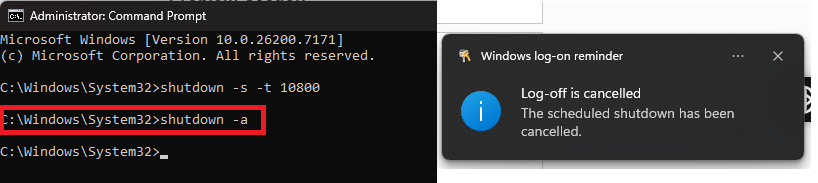
Note: You need to input the time in seconds. So if you want to set a shutdown timer for 3 hours, it would be <shutdown -s -t 10800>.

For the 2nd option (Command Prompt):
1. Open CMD as an admin

2. Type the same command and hit Enter

3. You can also cancel a shutdown timer with this command: shutdown -a
GUI methods (for non-technical users)
For users unfamiliar with or unwilling to use command-line tools, Windows 11 offers graphical alternatives that are more intuitive but less flexible, such as the built-in Task Scheduler. This method also allows you to set a recurring shutdown at certain times or actions.
Follow these steps:
1. Open Task Scheduler as an Admin

2. In the right pane, click “Create Basic Task”

3. Give your task a name, like “Regular shutdown”, and basic description > Next

4. Set your trigger, whether it’s a recurring shutdown or just a once off task that won’t happen again, then hit Next

5. Set the date and time you want this to happen > Next. Be sure to check “Synchronize across time zones” if you’re setting a task across endpoints in different time zones.

6. Check Start a program > Next

7. Enter the command <shutdown> then add these arguments: -s -f
Here’s what each of those parameters do:
- -s: Tells it to shutdown, instead of restart or log off.
- -f: Forces running applications to close without warning, so nothing interupts the shutdown.

8. Hit Next > Finish
PowerShell scripts (for advanced automation or Enterprise IT)
PowerShell takes shutdown timers from scheduled tasks to intelligent automation. Unlike CMD or GUI tools, PowerShell supports conditional logic, remote execution across endpoints, and integration with enterprise platforms, making it the preferred method for IT teams managing complex environments.
For a basic shutdown script, follow these steps:
1. Open PowerShell as an Admin

2. Paste this command: Start-Sleep -Seconds 10800; Stop-Computer -Force

This simple scripts waits 3 hours, then forces a shutdown. But this is a very basic example of what you can do. PowerShell allows you to implement conditional logic, meaning that instead of just scheduling a shutdown at a certain time of day, you can tell the computer what situations should cause a shutdown, such as inactivity or CPU usage.
For example, here’s a PowerShell script that checks current CPU usage, does nothing if it’s above 10%, but initiates a shutdown if it’s below 10%.

The best part is that you don’t even have to be a coding whizz to run advanced automation scripts like this, thanks to a new process called vibe coding that uses AI to help you generate powerful scripts from natural language queries.
For example, if you use Atera, AI Copilot acts like your digital assistant that can help you generate PowerShell scripts and even recommend what kind of scripts you might need. You could tell it to “Write me a script to shutdown a PC that’s been idle for 30 minutes”. You could then use the RMM platform to deploy the PowerShell script remotely to as many endpoints as you need.
Scale your shutdown strategy with Atera
Setting a shutdown timer in Windows 11 is straightforward whether you need a quick one-time countdown via CMD, a recurring schedule through Task Scheduler, or remote PowerShell execution for distributed devices. These methods work well for individual machines or small teams, but they start to break down when you’re managing dozens (or hundreds) of endpoints across mixed Windows editions, remote locations, and varying user permissions.
That’s where a platform like Atera changes the game. Instead of manually configuring timers on each device, Atera lets you deploy scripted shutdown policies fleet-wide with group policy management, enforce compliance with centralized logging, and adjust conditions from a single dashboard.
» Interested? Start a free trial with Atera
Related Articles

How to check if a disk is MBR or GPT in Windows
Choosing between MBR and GPT depends on your hardware and future storage needs, with GPT supporting larger drives and modern security features. You can check your disk’s partition style in seconds using Disk Management, Command Prompt, or PowerShell.
Read now
How to enable or disable the Action Center in Windows 10 and 11
The Action Center centralizes system alerts and quick toggles, but it requires specific background services and shell integrations to function correctly. While hiding the interface stops visual distractions, notifications still process in the background, making proactive management necessary for security.
Read now
How to change file associations in Windows 10 and 11
Windows file associations follow a priority system that decides which app opens your files, and problems usually happen when those links break or apps aren’t registered correctly. You can fix or change them using built-in tools, while automation platforms make large-scale management much easier.
Read now
How to fix the “vcruntime140.dll not found” error in Windows 11
The "vcruntime140.dll" error usually happens because of missing or corrupt Visual C++ Redistributables. To fix it safely, verify your system architecture and reinstall the official Microsoft packages for both x86 and x64.
Read nowEndless IT possibilities
Boost your productivity with Atera’s intuitive, centralized all-in-one platform













