
Table of contents
Generate summary with AI

A surprisingly common problem that Windows users face is when their taskbar and Start menu stop responding (such as missing icons and search results or just not working at all), but everything else (including your open apps) are still fine. You might not be able to click Start, system tray icons do nothing, and File Explorer windows stop responding, but the keyboard and existing application windows still seem fine.
Most people just restart their PC when this happens, but there’s actually a much faster method that could fix this problem. This guide shows you the simplest ways to restart the explorer.exe in Windows 10 and Windows 11.
What to know before restarting explorer.exe
A faulty taskbar or Start menu is one of the symptoms of an explorer.exe crash, but not the cause. This process crash is typically caused by:
- Third-party shell extensions: Tools like WinRAR or Dropbox add context menu items that may conflict with Windows Explorer.
- Corrupted system files: Often triggered after failed updates or improper shutdowns.
- Outdated or incompatible GPU drivers: Especially common after Windows feature upgrades or legacy drivers.
- Excessive memory usage: Systems with limited RAM may struggle when multitasking or handling large folders.
- Display scaling issues: High-DPI monitors (like 4K resolution on a small screen) can cause rendering glitches in Windows and certain apps.
» Here’s how to disable Windows updates and manually re-enable Windows updates
How to prepare for an explorer.exe restart
Restarting explorer.exe in production or multi-user environments requires caution to avoid disrupting active sessions, shared workflows, or remote desktop stability, which could be catastrophic. For example, in a hospital IT setting, restarting explorer.exe without warning could interrupt EMR access or kiosk terminals.
Admins should do the following first:
- Notify users to save work
- Suspend BitLocker or encryption tools if firmware or boot settings are involved
- Use elevated permissions to avoid access errors
- Log the action for audit trails in managed environments
» Entire PC crashed? Here’s how to restart a remote computer using Windows
Simplest methods for restarting explorer.exe in Windows
Depending on your role or access level, you might have different permissions that affect how you can restart explorer.exe. In enterprise IT or Active Directory environments, only administrators can do so system-wide explorer.exe restarts via remote tools.
In Windows 10 and 11, standard users can restart their own explorer.exe process using Task Manager or PowerShell. However, they operate within a limited security context, meaning:
- They can’t restart explorer.exe for other users
- They can’t elevate the process to access the protected system areas
- They may trigger access errors or lose unsaved work if the restart interrupts active sessions
1. Task Manager (the simple GUI approach)
Task Manager is the simplest method that people can use to restart explorer.exe in all Windows conditions. It’s a GUI method, which makes it easy to follow since you’ll just be clicking through menus and don’t need to fiddle with command-line utilities or other complicated approaches.
The method is pretty much the same in Windows 10 and Windows 11, but the interface layout and button placement differ slightly. Windows 11 features a more modern, rounded UI, while Windows 10 retains a classic grid layout.
Follow these steps:
1. Press CTRL + Shift + Esc to open Task Manager
Windows 11:

Windows 10:

2. Click the Processes tab > Name to filter alphabetically, which makes Windows Explorer easier to find
Windows 11:

Windows 10:
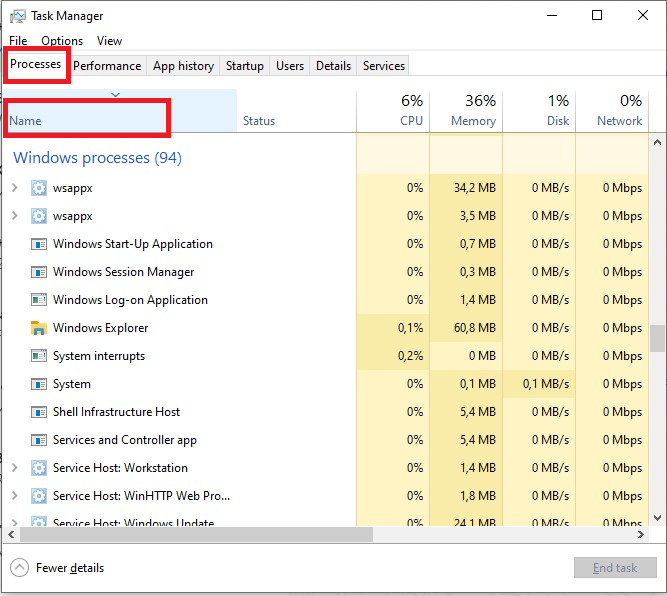
3. Scroll past Apps and Background processes to Windows processes, then find Windows Explorer > Right click > Restart
Windows 11:

Windows 10:

» Learn more about killing a process in Windows
2. Command Prompt (when Task Manager isn’t working)
Command Prompt uses the “taskkill” command to stop and restart explorer.exe. It’s great for single users because it can still usually be opened, even if explorer.exe has crashed badly enough to stop Task Manager from working.
Keep in mind that standard users can restart their own session, but you need to have administrator privileges to restart explorer.exe across multiple sessions or via remote tools. Other than that, there aren’t any process differences between Windows 10 and 11.
Follow these steps:
1. Open Command Prompt as an Administrator
Note: if you don’t have administrator privileges, you can still use this method for your local machine.

2. If this isn’t working because your search bar is failing, press Windows key + R, type CMD, and hit Enter

3. Run this command: taskkill /f /im explorer.exe
If it worked correctly, it’ll return the response “The process ”explorer.exe” with PID {x} has been terminated.”

4. Wait a few seconds, then run this command: start explorer.exe

This method forcibly ends the process and relaunches it. In Windows 10, the desktop may briefly flash before restoring. In Windows 11, the restart is smoother due to UI optimizations and session isolation.
3. PowerShell (advanced scripting and automation)
PowerShell is the most powerful option for restarting explorer.exe; not just because the syntax is simpler, but also because of what you can build around it. While Task Manager works fine for one-off local fixes and Command Prompt handles basic remote troubleshooting, PowerShell enables automation, remote execution, and intelligent remediation that scales across your entire infrastructure.
For individual troubleshooting on a single device where Task Manager works, stick with the GUI. But for IT teams managing fleets of endpoints, PowerShell turns a manual fix into an enterprise-grade automation solution.
Follow these steps:
1. Open PowerShell as an Administrator
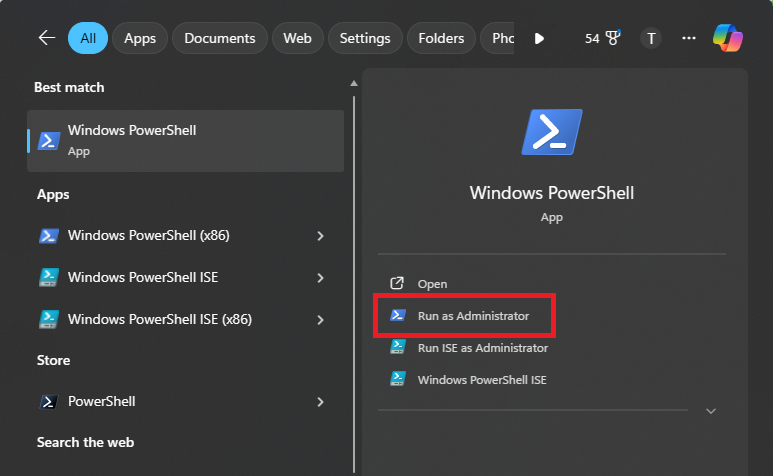
2. Stop and start the explorer.exe by pasting this script: Stop-Process -Name explorer -Force; Start-Process explorer.exe

This forces the process to end and immediately relaunches it, even if windows are still open, restoring your desktop, taskbar, and File Explorer in seconds. While this is great, the real benefit of PowerShell come from its ability to add conditional logic and error handling. Instead of blindly restarting explorer.exe, you can build intelligent scripts that diagnose before acting.
For example, this script restarts explorer.exe, but only if CPU usage is high.

Manual PowerShell execution works fine for individual devices, but what happens when a sketchy Windows update rolls out across your infrastructure and Windows Explorer crashes on all 50 endpoints simultaneously? This is where RMM platforms transform PowerShell from a troubleshooting tool into an enterprise automation engine.
With Atera, AI Copilot helps you create a custom script to stop and restart explorer.exe under specific conditions, like high CPU usage, and you can deploy that script remotely to all endpoints using Atera’s RMM platform.
Keep your Windows environment running smoothly
Restarting explorer.exe is a quick fix for desktop freezes, taskbar glitches, and File Explorer crashes, but the method you choose matters. Task Manager works perfectly for one-off local IT issues, while Command Prompt and PowerShell provide the flexibility needed for remote troubleshooting and scripted workflows.
For IT teams and MSPs managing dozens or hundreds of endpoints, manual restarts don’t scale. Atera’s Agentic AI platform helps IT pros transform these one-off fixes into automated, intelligent workflows that monitor, remediate, and prevent explorer.exe failures. With AI Copilot generating custom scripts with vibe coding and Robin handling tier-1 issues autonomously while interacting directly with end users, your team can focus on strategic initiatives instead of repetitive troubleshooting.
» Interested? Start a free trial with Atera
Related Articles

How to check if a disk is MBR or GPT in Windows
Choosing between MBR and GPT depends on your hardware and future storage needs, with GPT supporting larger drives and modern security features. You can check your disk’s partition style in seconds using Disk Management, Command Prompt, or PowerShell.
Read now
How to enable or disable the Action Center in Windows 10 and 11
The Action Center centralizes system alerts and quick toggles, but it requires specific background services and shell integrations to function correctly. While hiding the interface stops visual distractions, notifications still process in the background, making proactive management necessary for security.
Read now
How to change file associations in Windows 10 and 11
Windows file associations follow a priority system that decides which app opens your files, and problems usually happen when those links break or apps aren’t registered correctly. You can fix or change them using built-in tools, while automation platforms make large-scale management much easier.
Read now
How to fix the “vcruntime140.dll not found” error in Windows 11
The "vcruntime140.dll" error usually happens because of missing or corrupt Visual C++ Redistributables. To fix it safely, verify your system architecture and reinstall the official Microsoft packages for both x86 and x64.
Read nowEndless IT possibilities
Boost your productivity with Atera’s intuitive, centralized all-in-one platform













