
Table of contents
Table of contents
- How to tell if errors are from winload.efi missing or corrupt
- What to do before fixing the “winload.efi missing or corrupt” error
- Easiest methods to fix “winload.efi missing or corrupt” error in Windows 10
- Troubleshooting: What might prevent your repair
- Stop fighting boot errors across dozens of endpoints
Generate summary with AI

The “winload.efi missing or corrupt” error stops Windows 10 dead in its tracks. That means no desktop and no recovery options, just a blue screen telling you the operating system won’t load. Microsoft highlights boot configuration problems (including BCD and loader issues such as winload.efi) as a major category of startup failures that can prevent Windows from loading at all. For IT teams managing dozens or hundreds of endpoints, a single corrupted bootloader can mean hours of downtime and frustrated end users.
This guide walks you through diagnosing and fixing winload.efi errors using Windows Recovery Environment tools, command-line utilities, and manual restoration techniques. You’ll learn how to identify the exact failure point, safely repair boot files without risking user data, and handle complications like Secure Boot conflicts and BitLocker encryption.
How to tell if errors are from winload.efi missing or corrupt
A corrupted or missing winload.efi breaks the Windows 10 boot chain at the stage where the Boot Manager hands control to the OS loader, preventing the kernel from loading. This typically results in critical boot errors such as 0xc000000e or 0xc0000225, often accompanied by messages like “winload.efi is missing or corrupt.”
You might not always get the error even though it’s the reason for boot failures, so here are some other things to look out for:
- Failed or partial Windows updates show repeated rollbacks, servicing errors, or pending reboot states. Updates touch the boot and EFI area and can leave the loader inconsistent.
- UEFI firmware changes like recent firmware updates or flashes, toggling Secure Boot, or edits to NVRAM boot entries can make winload.efi untrusted or unreachable.
- Power events such as abrupt shutdowns, brownouts, or frequent Kernel-Power events increase risk of on-disk metadata corruption affecting the EFI System Partition (ESP).
- Disk health warnings include SMART attributes like Reallocated Sector Count or Current Pending Sector and I/O errors on the system disk that often precede inability to read \EFI\Microsoft\Boot\winload.efi.
- Filesystem or ESP anomalies involve missing or corrupted files under \EFI\Microsoft\Boot, unexpected drive or partition GUID changes after imaging or cloning, or failed mounts of the ESP.
- Boot configuration changes manifest as sudden BCD errors, missing boot entries, or failed bcdedit operations after maintenance.
- Driver or storage controller updates to NVMe/SATA drivers, RAID firmware, or storage controller drivers can change how the OS accesses the disk and break the handoff.
- Antivirus or security tooling interference from aggressive endpoint protection or tamper protection that quarantines or blocks boot files during updates can trigger these errors.
UEFI-only systems display winload.efi errors through the Windows Boot Manager with distinct patterns:
- Blue Screen (BSOD) with error codes 0xc0000225 or 0xc000000e, explicitly stating the application is missing or contains errors.
- Direct firmware return on some UEFI implementations, where failure to validate the winload.efi signature causes the system to immediately exit the boot attempt and return to BIOS/UEFI Setup Menu.
- Security violation alerts when Secure Boot is enabled and winload.efi is corrupted or tampered with, displaying “Secure Boot Violation” or “Invalid Signature Detected” warnings.
- Boot loop to Automatic Repair where the system fails the checksum for winload.efi and repeatedly enters WinRE without reaching the login screen.
Mixed UEFI/Legacy configurations create identity conflicts between partition style (GPT vs. MBR) and firmware mode:
- Black screen text errors stating “disk read error occurred” or “No bootable medium found”.
- “Wrong loader” errors where the system hangs at the manufacturer logo or throws a “File not found” error.
- Inconsistent boot behavior where the system may boot intermittently depending on which device (UEFI vs. Legacy) is prioritized in the BIOS Boot Specification priorities.
Secure Boot-enforced environments produce more aggressive security responses:
- Red or yellow warning banners stating “Secure Boot Violation” or “Invalid Signature Detected”.
- Silent boot failure where the system simply refuses to execute the file and loops back to the splash screen.
- BitLocker Recovery Mode triggers requiring recovery keys before any repair can proceed.
What to do before fixing the “winload.efi missing or corrupt” error
Before attempting any repairs, check your system’s health to determine the safest path forward. Running repair commands on a failing disk can cause permanent data loss or create a “Franken-system” where the registry and bootloader are out of sync.
Note: Most these steps will only work if you can access Windows, or the Windows Recovery Environment (WinRE) at least. If you can’t do that, then you can still proceed to the repair steps, but these pre-repair steps are to help you save time by figuring out if it’s even possible to fix the error and what might be wrong.
Step 1: Check disk health with SMART diagnostics
SMART (Self-Monitoring, Analysis, and Reporting Technology) monitors your hard drive’s health and warns of potential failures. From Windows (if you can boot to Safe Mode or another working system), follow these steps:
Note: If you can’t boot into Windows, you can still access Command Prompt from the Windows Recovery Environment (WinRE) by navigating through Troubleshoot > Command Prompt.
1. Open Command Prompt as Administrator

2. Type: wmic diskdrive get status
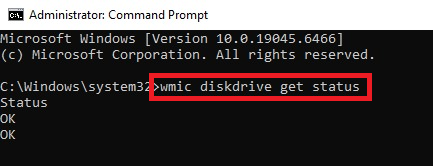
3. Look for “OK” status; anything else indicates hardware problems and you’ll likely have to replace your storage drive as repair won’t work
Step 2: Check for recent power events
Power failures during writes can corrupt the EFI partition.
If you can access Windows:
1. Press Windows + X, select “Event Viewer”

2. Navigate to Windows Logs > System > Filter current log

3. Filter by Event ID 41 (Kernel-Power)

4. Check timestamps; events within 24 hours of boot failure are red flags

Step 3: Check Windows Update history
Failed updates are the most common cause of winload.efi corruption.
1. From WinRE Command Prompt, check the Windows Update log location with this command: dir C:\Windows\Logs\CBS\CBS.log

2. Look for recent timestamps (within 48 hours of boot failure)
3. Check for update rollback evidence with this command: dir C:\Windows\WinSxS\pending.xml

4. If this file exists, an update was interrupted, but if not, then it likely wasn’t an update that caused the issue
» Here’s how to disable Windows updates and manually re-enable Windows updates
Step 4: Identify BitLocker encryption status
Attempting repairs on locked BitLocker volumes will fail silently.
1. From WinRE Command Prompt, check BitLocker status with this command: manage-bde -status

2. Look for:
- Conversion Status: Fully Encrypted: Volume is encrypted.
- Lock Status: Locked: Must unlock before repairs.
- Protection Status: Protection On: BitLocker is active.
3. If locked, you’ll need your 48-digit BitLocker recovery key before proceeding.
Easiest methods to fix “winload.efi missing or corrupt” error in Windows 10
Once you’ve verified that the issue is actually fixable and you have all the things you need to perform the repair, you can move onto the next steps.
1: Use Windows Recovery Environment (WinRE) to identify the exact failure point
To identify the exact boot failure point if automated startup repair isn’t working, go straight to the Windows Recovery Environment (WinRE) to manually inspect log files and system configuration data.
Follow these steps:
1. Boot into WinRE by turning on your PC, then pressing and holding the power button when the Windows logo/manufacturer logo appears
2. Repeat 2-3 times until you reach WinRE, which looks like this:
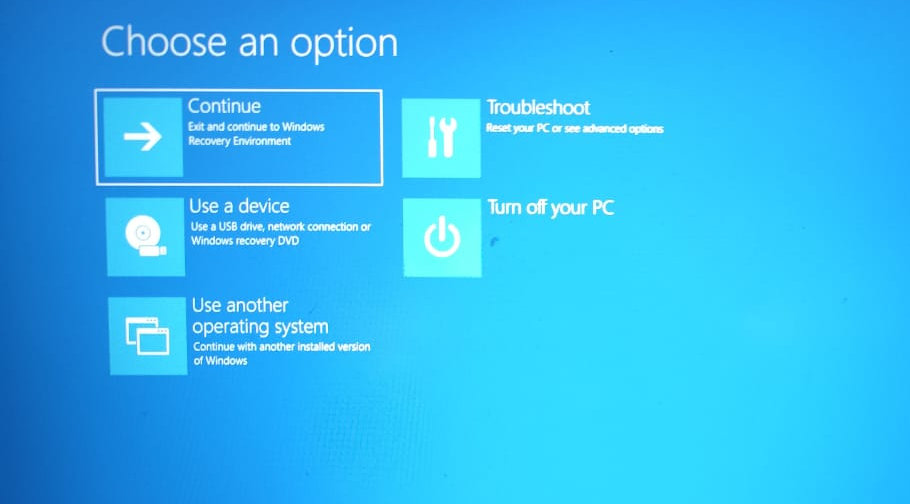
Note: If this isn’t working, you can also get to WinRE by inserting Windows installation media, booting from it, and selecting “Repair your computer.”
3. Navigate to Troubleshoot > Advanced options > Command Prompt

4. From the Command Prompt, run this command: notepad C:\Windows\System32\LogFiles\Srt\SrtTrail.txt
When Windows fails to boot, it often runs an automatic repair attempt that fails. This attempt generates a detailed log file that pinpoints exactly what failed. This log shows which test failed (disk failure diagnosis, disk metadata test, boot critical file repair) and identifies the root cause, such as “Boot critical file C:\Windows\System32\drivers\example_driver.sys is corrupt.”
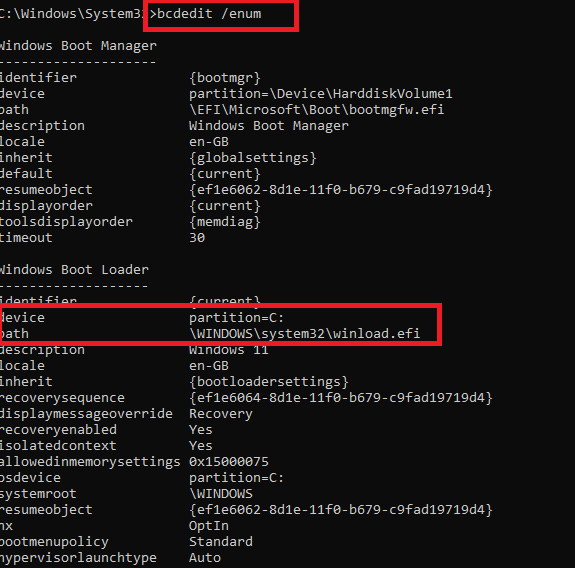
5. Then inspect the Boot Configuration Data (BCD) with this command: bcdedit /enum
6. Look for the Windows Boot Loader section and verify:
- The device partition matches your actual system partition
- The path points to \Windows\system32\winload.efi
- No GUID mismatches or “unknown” device references
7. Then run these commands: diskpart
list disk
list volume
8. Confirm the following:
- Your system disk shows as “Online”
- The EFI System Partition (100-500MB, FAT32, labeled “System”) is present
- The Windows partition is listed and accessible
- Disk format is GPT (for UEFI systems)

If the system starts to load (the spinning dots appear) but then crashes, the failure is happening during driver initialization. In which case, follow these steps:
1. In WinRE, navigate to Troubleshoot > Advanced Options > Startup Settings > Restart

2. Press 2 or F2 to enable Boot Logging
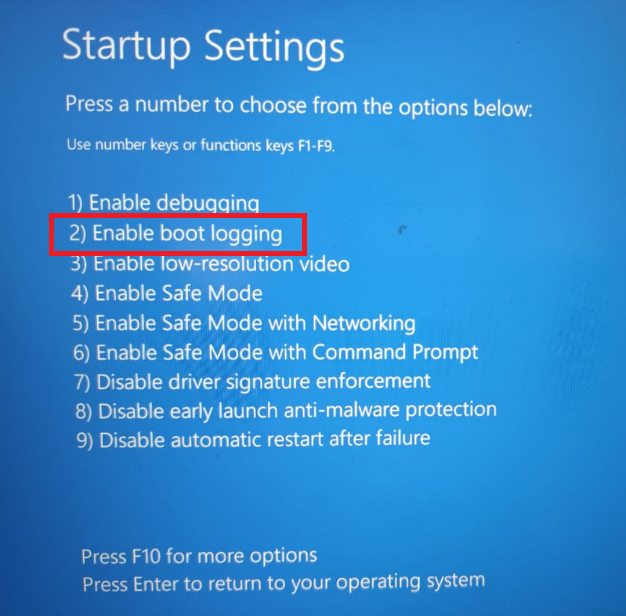
3. After the system attempts to boot and fails, return to WinRE Command Prompt and enter this command: notepad C:\Windows\ntbtlog.txt
The last driver loaded before the crash is typically the culprit. If that’s the case, take a look at our guide to updating drivers and the best driver updater software.
» Here’s all you need to know about Activity History in Windows
2: Repair EFI boot files and rebuild the BCD store
To repair the EFI boot files and rebuild the BCD (Boot Configuration Data) store on a UEFI-based system, you must work from the Windows Recovery Environment (WinRE). This procedure specifically targets the hidden EFI System Partition (ESP) where the bootloader lives.
Follow these steps:
1. From WinRE, navigate through Troubleshoot > Advanced > Command Prompt
2. Mount the hidden EFI partition by typing: diskpart

3. List your disks: list disk

4. Select your system disk (usually disk 0): select disk 0

5. List volumes to identify the EFI partition with this command: list vol

6. Look for a 100MB to 500MB volume formatted as FAT32 labeled “System” or “Hidden”, then note its volume number
7. Select that volume: select vol<number> (replace <number> with your EFI volume number)
8. Assign a drive letter (you can use any free drive letter): assign letter=V:
9. Navigate to the boot directory: cd /d V:\EFI\Microsoft\Boot\
10. If this path isn’t found, try cd /d V:\Boot\ or cd /d V:\EFI\Boot\
11. Run the boot sector repair: bootrec /fixboot
Note: If you get “Access is denied,” proceed to the next step anyway as bcdboot often bypasses this
12. Backup the old BCD: ren BCD BCD.bak
13. Rebuild the BCD (Replace C:\Windows with your actual Windows path if it differs in the recovery environment (such as D:\Windows)): bcdboot C:\Windows /s V: /f UEFI
3: Offline DISM (the component store repair)
If SFC fails to fix the file because the local source is also corrupt, use DISM to repair the recovery source itself.
This repairs the Windows component store by pulling fresh files from installation media or Windows Update, allowing subsequent SFC scans to succeed.
Follow these steps:
Using installation media:
1. Insert your Windows Installation USB
2. Note the drive letter of the USB (e.g., E:)
3. Note your Windows drive letter (e.g., D:)
4. Run: dism /Image:D:\ /Cleanup-Image /RestoreHealth /Source:esd:E:\Sources\Install.esd:1 /LimitAccess
Replace D: with your Windows drive and E: with your USB drive letter
Using internet (if available in WinRE):
1. Run: DISM /Online /Cleanup-Image /RestoreHealth
2. Wait for completion; this may take 30-90 minutes depending on your connection
» Learn more about using the DISM command correctly
Step 4: Manually restore or regenerate winload.efi from installation media
Use this method when the file is missing from the EFI System Partition (ESP) or when SFC/DISM fail to repair corruption within the local OS image.
Follow these steps:
1. Boot from Windows installation media
2. Select Repair your computer > Troubleshoot > Command Prompt
3. Mount the EFI partition:
- Type:
diskpart - Type:
list vol - Identify the FAT32 volume (approximately 100-500MB)
- Type:
select vol <#>(replace <#> with your EFI volume number) - Type:
assign letter=V: - Type:
exit
4. Confirm your Windows directory letter by typing: dir C:
5. If you see a Windows folder, continue with C:. If not, try dir D: or dir E: until you find your Windows installation.
6. Regenerate boot files with this command (Replace C: with wherever your Windows directory is located): bcdboot C:\Windows /s V: /f UEFI
You can then validate that the repair was successful with these steps:
1. Confirm the file exists: dir V:\EFI\Microsoft\Boot\winload.efi
If the file is listed with a recent timestamp, the generation succeeded.
2. Verify the boot configuration: bcdedit /store V:\EFI\Microsoft\Boot\BCD /enum
3. Check the following:
deviceandosdevicepoint to the correct partition (e.g., partition=C:)pathspecifically lists\Windows\system32\winload.efi
4. Reboot and enter UEFI BIOS (usually F2, Del, F12, or Esc during startup). It should look something like this:

Note: Your mouse might not work in the BIOS menu, depending on your manufacturer. In this case, just cycle through options with the arrow keys.
5. Ensure “Windows Boot Manager” is the #1 priority in the Boot Order, rather than the raw SSD/HDD device

» Here’s how to update BIOS on your PC
Troubleshooting: What might prevent your repair
If the winload.efi error persists after running bcdboot, the logical map (BCD) might be fixed, but the execution environment or physical source is still compromised.
Issue 1: Secure Boot conflict (signature verification)
The most common reason for persistent errors is Secure Boot blocking the newly created winload.efi file. Disabling and enabling it again usually fixes this.
Here’s how:
1. Restart and enter UEFI firmware settings
2. Disable Secure Boot

3. Boot to Windows login successfully at least once
4. Return to firmware settings and re-enable Secure Boot
This allows the firmware to register the new signature.
» Learn more about disabling and enabling Secure Boot
Issue 2: SATA/NVMe controller mode change
If your BIOS was recently updated or reset, it may have reverted from RAID to AHCI (or vice versa). Windows expects one mode, but the firmware now presents the disk in a different mode.
Solution:
1. Restart and enter UEFI firmware settings
2. Locate SATA Operation or Storage Configuration
3. Try changing between AHCI and RAID modes
4. Save and reboot
If AHCI doesn’t work, try RAID (or vice versa).
Issue 3: Nothing works
If you’ve tried all the methods here and you’re still unable to fix the error, then you only really have two options left as last resorts:
- Full windows reinstall: When boot configuration repair, system file restoration, and partition fixes all fail, the corruption may run deeper than repair tools can reach. A Windows reinstallation or clean Windows installation with the creation tool bypasses all existing boot files, configuration databases, and system structures entirely, replacing them with known-good copies from installation media.
- Hardware replacement: Sometimes winload.efi errors aren’t software problems at all but symptoms of hardware failure that no amount of configuration repair can fix. Failing storage drives develop bad sectors that corrupt boot files faster than repair tools can restore them, creating a cycle where fixes work temporarily but errors return within hours or days. Faulty RAM can cause data corruption during boot processes, making boot configuration databases unstable even after successful repair. Degrading motherboard firmware or failing UEFI chips may prevent proper boot manager initialization regardless of software configuration. In these scenarios, replacing the failing component becomes the only viable solution.
Stop fighting boot errors across dozens of endpoints
Fixing winload.efi errors manually works for a single endpoint, but IT teams managing dozens or hundreds of Windows devices can’t afford to troubleshoot boot failures one machine at a time. The early warning signs covered in this guide (failed updates, power events, disk health warnings, and firmware changes) are all monitorable events that can trigger alerts before they cascade into boot failures.
Atera’s RMM platform gives IT teams the tools to catch these IT issues early through automated SMART monitoring, centralized patch management that prevents update-related corruption, and remote access capabilities that let technicians execute recovery commands without site visits. Instead of manually firefighting boot errors across your environment, Atera helps you shift from reactive troubleshooting to proactive endpoint health management, keeping systems running and users productive.
» Want to try it out? Try Atera for free
Related Articles

How to check if a disk is MBR or GPT in Windows
Choosing between MBR and GPT depends on your hardware and future storage needs, with GPT supporting larger drives and modern security features. You can check your disk’s partition style in seconds using Disk Management, Command Prompt, or PowerShell.
Read now
How to enable or disable the Action Center in Windows 10 and 11
The Action Center centralizes system alerts and quick toggles, but it requires specific background services and shell integrations to function correctly. While hiding the interface stops visual distractions, notifications still process in the background, making proactive management necessary for security.
Read now
How to change file associations in Windows 10 and 11
Windows file associations follow a priority system that decides which app opens your files, and problems usually happen when those links break or apps aren’t registered correctly. You can fix or change them using built-in tools, while automation platforms make large-scale management much easier.
Read now
How to fix the “vcruntime140.dll not found” error in Windows 11
The "vcruntime140.dll" error usually happens because of missing or corrupt Visual C++ Redistributables. To fix it safely, verify your system architecture and reinstall the official Microsoft packages for both x86 and x64.
Read nowEndless IT possibilities
Boost your productivity with Atera’s intuitive, centralized all-in-one platform













