
Table of contents
Table of contents
- Why desktop icons disappear
- Easiest methods for opening a program without the desktop icon
- 2. Navigate directly through the file system (2nd fastest)
- 3. Use command-line utilities (most reliable)
- 4. Through system monitors (for emergencies)
- Keep your team productive, no matter what
Generate summary with AI

One minute everything looks normal, the next your users are staring at a blank desktop, unable to access the tools they need to work. Fixing the problem can take anywhere from minutes to hours, but what if you’re about to go into an important meeting and need that presentation opened up and ready to go right now?
Thankfully, you don’t actually need to see the icon on your desktop to be able to open a program. There are a few ways to still open programs depending on which OS you’re using and what’s actually broken. Here’s everything you need to know.
» If you want to know why your icons might be disappearing, consider checking Windows Event Viewer or running a full diagnostics report
Why desktop icons disappear
Think of the desktop as a layered interface where the shell at the top draws icons from the user profile and registry editor settings beneath it. If any of these layers fail, the visible desktop appears empty while the underlying files remain safely stored on disk.
That means there are a few different reasons that your desktop icons might not be there, depending on the operating system you use. The most common include:
- Profile corruption: When a user’s Windows profile fails to load correctly, the system may revert to a temporary profile, leaving all personalized shortcuts and icons behind. The desktop appears empty because Windows is loading a fresh, generic profile. macOS users encounter similar issues when user account data becomes corrupted, though the system typically displays error messages rather than reverting to a temporary profile. Linux desktop environments can also fail to load user-specific configurations when profile files in the home directory become corrupted.
- Explorer crashes or incomplete shell initialization: Windows Explorer serves as the graphical shell that displays your desktop, taskbar, and file system. If Explorer crashes during startup or fails to initialize completely, icons simply won’t appear. In many cases, restarting the explorer.exe process through Task Manager immediately restores the desktop. macOS users experience similar issues when Finder crashes or hangs during login, while Linux users may see their entire desktop environment (GNOME Shell, KDE Plasma, or others) fail to start properly.
- Group Policy or registry settings: Some settings hide desktop elements and can also suppress shortcuts even when they physically exist on disk. Policies like “Remove all desktop icons” or “Hide common icons on the desktop” are sometimes deployed intentionally in managed environments, but can also be applied accidentally or through malware. macOS uses configuration profiles and restrictions that can similarly hide desktop items, while Linux desktop environments employ their own configuration systems that can disable icon display through settings in files like dconf databases or desktop environment-specific configurations.
If this is a temporary issue and you don’t have time to troubleshoot why your desktop icons aren’t there, then move onto the methods below. If this is a recurring issue and you routinely can’t find your desktop icons, then something more serious may be happening that could affect desktop icons and other files. Read our guides to finding missing desktop icons in Windows 10 or showing hidden files in Windows 11 to learn more.
» Learn more about group policy management with Atera
Easiest methods for opening a program without the desktop icon
Every major operating system provides multiple built-in methods to access programs without relying on desktop shortcuts. Here are some ways you can get back to work immediately.
1. Use your operating system’s main menu (fastest)
The fastest user-friendly solution is your OS’s primary application launcher, which remains accessible even when desktop icons disappear.
On Windows
Follow these steps:
1. Click the Start button (if it’s available) or just press the Windows key
2. All apps should be displayed in alphabetical order, but on some editions of Windows (like 11), you’ll have to click “All” to see everything

3. If you want to open Notepad, you can either search Notepad in the top bar or scroll down to find it manually

4. Just click on the “Notepad” icon from the Start menu or click “Open” on the left pane
If search results fail to appear, the Windows Search service may not be running, or the search index may need rebuilding, but it’s easy to check.
5. Open Services by pressing Windows + R, typing services.msc, and pressing Enter

6. Scroll down to “Windows Search” and make sure that the status shows “Running”

7. To rebuild the index, go to Settings > Privacy & security (Windows 11) > Search

8. Click Advanced indexing options > Advanced > Rebuild

On macOS
The process is slightly different. Open Launchpad by clicking its icon in the Dock or using a three-finger pinch gesture on the trackpad Launchpad displays all installed applications in a grid layout similar to iOS, organizing apps across multiple pages. Applications live in the /Applications folder for system-wide installations or ~/Applications for user-specific apps.
You can also press Command + Space to invoke Spotlight search from anywhere. Spotlight indexes the /Applications folder and user-installed apps in ~/Applications, searching both application names and metadata. Type a few letters of the app name.
If Spotlight fails to find applications, the index may be corrupted. Open System Preferences > Spotlight > Privacy, drag your hard drive into the exclusion list, wait a moment, then remove it to force a complete reindex.
On Linux
You’ll have application menus that vary by desktop environment. For example, GNOME’s Activities overview, KDE’s Application Launcher, or XFCE’s Applications Menu are different but all serve the same purpose. These menus categorize software by type (Graphics, Internet, Office, System Tools) and integrate .desktop files that define how applications appear and launch.
If search fails to find programs, verify that .desktop files exist in /usr/share/applications (system-wide) or ~/.local/share/applications (user-specific). Some applications installed outside package managers may not create .desktop files automatically and will require manual creation for search visibility.
2. Navigate directly through the file system (2nd fastest)
When menus and search fail, going straight to the source (the application’s executable file) provides a foolproof launch method.
On Windows
Follow these steps:
1. Press Win + E to open File Explorer and navigate to standard installation directories:
- Most 64-bit applications install to C:\Program Files
- 32-bit applications on 64-bit Windows go to C:\Program Files (x86)
- Microsoft Store apps (UWP applications) install to the hidden C:\Program Files\WindowsApps folder, which requires administrator permissions to access

2. Once you locate the application’s folder, find the .exe file (like chrome.exe for Google Chrome) and double-click to launch

3. If you can’t see file extensions and don’t know what .exe file is supposed to look like, you can enable them by clicking View > Show > File extensions

If the application requires elevated privileges, right-click the .exe file and select “Run as administrator”
On macOS
Follow these steps:
1. Open Finder (Command + N or click the Finder icon in the Dock)
2. Navigate to the /Applications folder using the sidebar or Go menu
System-wide applications live here as .app bundles, which are self-contained packages that include all necessary files. User-installed applications may also appear in ~/Applications (your home folder’s Applications directory).
3. Double-click the bundle itself (no need to dig into internal files like Windows .exe files)
4. For command-line tools or Unix binaries, navigate to /usr/bin or /usr/local/bin, though these typically require Terminal access to launch
On Linux
Linux users employ file managers like Nautilus (GNOME), Dolphin (KDE), or Thunar (XFCE) to browse application directories. System-installed packages typically place executables in /usr/bin for command-line programs or /usr/share/applications for graphical apps with .desktop launchers. Locally compiled or manually installed software often goes to /usr/local/bin or /opt for optional packages.
Unlike Windows, many Linux executables are command-line programs that won’t launch a GUI when double-clicked in a file manager as these require terminal access. For graphical applications, double-clicking the executable or associated .desktop file launches the program.
3. Use command-line utilities (most reliable)
Command-line interpreters provide the most direct path to launching applications by bypassing all graphical interfaces entirely. When desktop environments malfunction, the terminal remains accessible and reliable.
On Winodws
Windows users can access PowerShell or Command Prompt (CMD) through multiple methods:
1. Open PowerShell or Command Prompt as an Administrator by right-clicking the start menu and clicking “Terminal (Admin)”
2. To launch an application, type its executable name if it’s in the system PATH, such as “notepad.exe”
For this to work, you need to know the executable name. For example, “calculator.exe” won’t work, but “calc.exe” will open the calculator.

3. You can also provide the full path enclosed in quotes for spaces:

PowerShell specifically offers additional capabilities like <get-command> to locate executables and <Start-Process> with the <-Verb RunAs> flag to launch programs with administrator privileges.
For example, here’s what that might look like, from finding where an app is located to opening it with administrator privileges:

You can even run more advanced commands with intelligent conditions through a single script. For example, this script checks multiple locations for Chrome.exe before running it as an admin and letting you know where it was found:

On macOS
macOS users open Terminal through Spotlight:
1. Press Command + Space and type “Terminal” or navigate to Applications > Utilities > Terminal
2. Use the open command, which varies depending on a few specifications:
- Normal: open -a Safari
- For apps with spaces in the name: open -a “Microsoft Word”
- Run in background: open -a Safari &
- Run with admin rights: sudo application-name
On Linux
Linux users open Terminal in various ways:
1. Press Super key and type Terminal or use your desktop’s terminal app (GNOME Terminal, Konsole, etc.)
2. Launch an application with the following specifications:
- Type the program name: firefox
- Run in background: firefox &
- Run with admin rights: sudo firefox
- Find where a program is: which firefox
While command-line tools provide reliable emergency access, they require technical knowledge that many end users lack. Atera’s RMM platform streamlines this entire process through remote execution capabilities. When users report missing desktop icons, technicians can use Atera to run PowerShell commands remotely or launch applications without walking users through complex terminal commands.
Even better, AI Copilot can generate these scripts instantly from plain-text instructions. Instead of memorizing PowerShell syntax for index rebuilds or application launches, simply describe what you need, such as “restart Windows Explorer” or “launch Chrome with admin privileges”, and AI Copilot creates the executable script in seconds.
» Did you know you can paste in PowerShell?
4. Through system monitors (for emergencies)
When the graphical shell becomes completely unresponsive, system monitoring tools provide a critical backdoor to launch programs and restore functionality.
On Windows
Windows users can always access Task Manager, even when the shell is frozen:
1. Press Ctrl + Shift + Esc (or Ctrl + Alt + Delete > Task Manager)
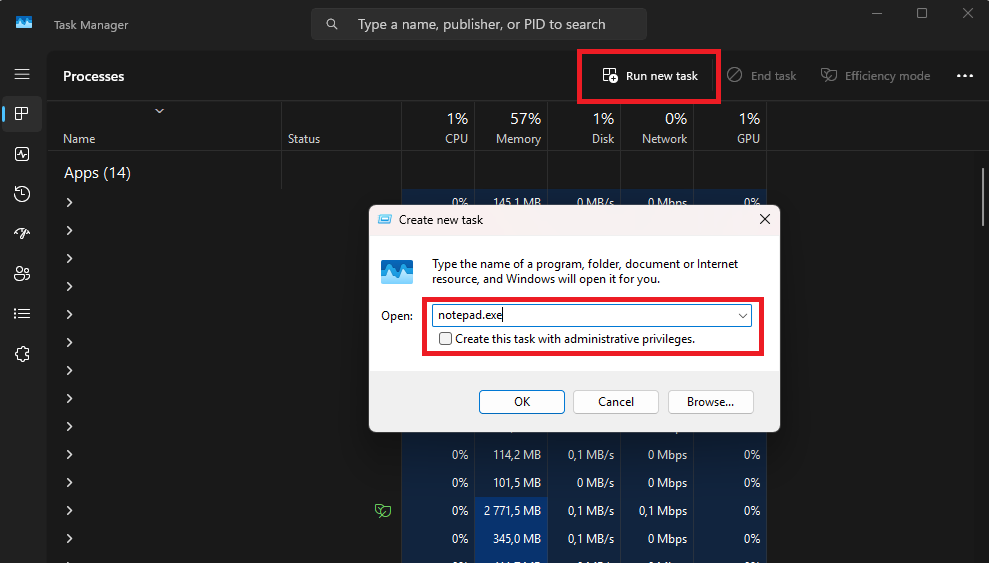
2. Click Processes > Run new task to access a command prompt-style dialog that launches applications
3. Type the executable name (notepad.exe) or full path (“C:\Program Files\App\app.exe”), check “Create this task with administrative privileges” if needed, and click OK
On macOS
macOS users can invoke Activity Monitor through Spotlight:
1. Press Command + Space > “Activity Monitor” or navigate to Applications > Utilities > Activity Monitor if Finder is still responsive
While Activity Monitor doesn’t have a dedicated “launch application” feature like Windows Task Manager, you can use it to restart Finder:
2. Select “Finder” in the process list > Click the X button to force quit
3. Reopen Finder from the Go menu or by pressing Command + Option + Esc to access the Force Quit Applications window
On Linux
Linux users have system monitors that vary by desktop environment: GNOME System Monitor, KDE System Monitor (KSysGuard), or lightweight alternatives like htop in the terminal.
Most GUI system monitors include a “Run New Task” or “Execute Command” option, typically found in a File or Tools menu. This opens a dialog where you can type application names or full paths to launch programs.
If the entire desktop environment has crashed, pressing Ctrl + Alt + F2 (or F3-F6) switches to a virtual console (text-only terminal), where you can log in and launch applications via command line or restart the desktop environment entirely with commands like <systemctl restart gdm> (for GNOME) or <systemctl restart sddm> (for KDE).
Keep your team productive, no matter what
Desktop icons disappearing might seem like a minor inconvenience, but when it blocks access to critical business applications, it can have a much bigger impact. The good news is that your operating system provides multiple fallback methods, from Start Menu navigation and built-in search to file system browsing and command-line access.
For enterprise IT organizations managing dozens or hundreds of endpoints, responding to these IT issues individually doesn’t scale. Atera’s all-in-one RMM platform transforms desktop troubleshooting from reactive firefighting into proactive management. When users report missing icons, IT teams can remotely diagnose the issue, execute essential remediation scripts, and restore functionality, all without leaving their desk or walking users through complex technical procedures.
» Interested? Start a free trial with Atera
Related Articles

How to check if a disk is MBR or GPT in Windows
Choosing between MBR and GPT depends on your hardware and future storage needs, with GPT supporting larger drives and modern security features. You can check your disk’s partition style in seconds using Disk Management, Command Prompt, or PowerShell.
Read now
How to enable or disable the Action Center in Windows 10 and 11
The Action Center centralizes system alerts and quick toggles, but it requires specific background services and shell integrations to function correctly. While hiding the interface stops visual distractions, notifications still process in the background, making proactive management necessary for security.
Read now
How to change file associations in Windows 10 and 11
Windows file associations follow a priority system that decides which app opens your files, and problems usually happen when those links break or apps aren’t registered correctly. You can fix or change them using built-in tools, while automation platforms make large-scale management much easier.
Read now
How to fix the “vcruntime140.dll not found” error in Windows 11
The "vcruntime140.dll" error usually happens because of missing or corrupt Visual C++ Redistributables. To fix it safely, verify your system architecture and reinstall the official Microsoft packages for both x86 and x64.
Read nowEndless IT possibilities
Boost your productivity with Atera’s intuitive, centralized all-in-one platform













